
You walk away from your PS5, confident it’s quietly downloading updates and charging your controller in the background. You come back an hour later, press the PS button — and nothing. Or worse, you get a message saying your console storage needs repairing. Again.
PS5 rest mode problems have frustrated players since launch day. Crashes, black screens, corrupted saves, controllers that won’t reconnect — the list is long. But here’s the thing nobody tells you clearly: most of these issues are fixable, and for a lot of players, rest mode works perfectly fine once a few settings are adjusted.
This guide covers every major PS5 rest mode problem, what causes each one, how to fix it, and — most importantly — whether you should keep rest mode on or just turn it off entirely.
What Is PS5 Rest Mode and What Does It Actually Do?
Before getting into problems, it helps to know what rest mode is supposed to do.
Rest mode is a low-power standby state. Your PS5 isn’t fully on, but it’s not completely off either. While in rest mode, the console can:
- Download and install game updates in the background
- Charge your DualSense controller via USB
- Stay connected to PSN for notifications
- Resume your game session quickly when you wake it up
On paper, it’s a genuinely useful feature. In practice, a portion of PS5 owners — particularly those who used rest mode heavily in the early days after launch — ran into serious stability issues.
Sony has released multiple firmware updates that improved rest mode stability significantly. But problems still surface for some users in specific situations, which is why this guide exists.
The Most Common PS5 Rest Mode Problems
1. Console Won’t Wake Up from Rest Mode
You press the PS button or the power button and nothing happens. The console appears completely unresponsive.
This is one of the most reported rest mode issues. What’s actually happening is the PS5 failed to properly resume its suspended state — usually because of a software glitch, an external USB drive conflict, or a brief power interruption while the console was sleeping.
How to fix it:
Hold the power button on the PS5 itself (not the controller) for about 7 to 10 seconds until you hear two beeps. This forces a hard shutdown. After the console turns off completely, wait 30 seconds, then power it back on normally.
If this keeps happening repeatedly, the likely cause is an external hard drive or USB device connected to the console. Try disconnecting all external devices before putting the PS5 into rest mode and see if the problem goes away.
2. Black Screen After Waking from Rest Mode
You press the PS button, the PS5 wakes up — you can hear it running — but the TV shows a black screen or a “no signal” message.
This is almost always an HDMI handshake issue, not a rest mode crash. When the PS5 wakes up and tries to re-establish a connection with your TV, something in the communication between the two devices fails.
How to fix it:
- Unplug the HDMI cable from the back of the PS5, wait 10 seconds, and plug it back in firmly
- If that doesn’t work, go to Settings → System → HDMI → Enable HDMI Device Link and turn it off
HDMI Device Link allows your PS5 to send power signals to your TV. Sometimes the TV sends a signal back that confuses the console into thinking it should go back to sleep. Disabling this feature stops that loop entirely.
If you’re using an older or budget TV, also check that the HDMI port you’re using supports the PS5’s output resolution. Switching to a different HDMI port on the TV sometimes resolves the handshake problem permanently.
3. “Repairing Console Storage” Message on Startup
You wake your PS5 and instead of going straight to the home screen, it shows a message about repairing console storage or rebuilding the database. This takes several minutes and feels alarming every time it happens.
Here’s what’s actually going on: when your PS5 enters rest mode, it saves its current system state to the SSD. If rest mode is interrupted — by a power fluctuation, a crashed background process, or an external drive disconnecting unexpectedly — the PS5 detects that the storage wasn’t properly closed and runs a repair automatically on next boot.
In most cases, your game saves are fine. The repair process is the console protecting itself, not a sign of permanent damage. Your unsaved in-game progress, however, is likely gone.
How to prevent it:
- Eject or safely remove any external USB drives before entering rest mode — this is the single most common trigger
- Make sure your PS5 is on a stable power supply — avoid power strips with other high-draw devices
- Keep your PS5 system software updated so that background processes are as stable as possible
4. DualSense Controller Won’t Reconnect After Rest Mode
You wake your PS5 from rest mode and press the PS button on your controller — the light flashes, but the console doesn’t recognize it. You end up having to connect via USB cable just to navigate the menu.
This specific issue is closely tied to rest mode because the Bluetooth stack on the PS5 sometimes doesn’t fully reinitialize when the console wakes up. The controller is trying to connect to a system that isn’t fully listening yet.
How to fix it:
First, check your USB power settings. Go to Settings → System → Power Saving → Features Available in Rest Mode and make sure Supply Power to USB Ports is set to 3 Hours or Always. When this is set to Off, the controller drains completely during rest mode and can’t reconnect.
If the controller simply won’t pair wirelessly after waking, connect it via USB cable, press the PS button, and let it reconnect that way. Then unplug the cable — wireless should kick in once the console fully wakes up.
For a full step-by-step fix, check our detailed guide on PS5 controller not connecting to console which covers every scenario including post-rest mode connection failures.
5. PS5 Enters Rest Mode by Itself
You’re mid-game or watching something and the console randomly drops into rest mode without any input from you.
This is usually caused by the automatic rest mode timer being set too short, or by HDMI Device Link picking up a signal from another device connected to your TV and interpreting it as an idle command.
How to fix it:
Go to Settings → System → Power Saving → Set Time Until PS5 Enters Rest Mode. You’ll see two options — one for media playback and one for gaming. Set both to a longer time or to Don’t Put in Rest Mode if you want full control.
Also disable HDMI Device Link as mentioned above — this eliminates the chance of your TV accidentally triggering rest mode.
6. Game Downloads Not Completing in Rest Mode
You queue up a large game update before going to sleep, confident it’ll be done by morning. You come back to find the download stopped partway through.
This happens for two reasons. Either the PS5’s internet connection dropped while in rest mode, or the download settings aren’t configured to allow background downloading.
How to fix it:
Go to Settings → System → Power Saving → Features Available in Rest Mode and make sure Stay Connected to the Internet is turned on. Without this, the PS5 cuts its network connection when it sleeps and downloads stop immediately.
Also check that your home internet connection is stable overnight. A router that occasionally drops or restarts can interrupt downloads even when the PS5 settings are correct.
How to Fix PS5 Rest Mode Problems — Master Fix List
If you’re experiencing multiple rest mode issues or want to start fresh, here’s a full reset approach:
Step 1 — Update everything Go to Settings → System → System Software → Update System Software. Install any available update. Then check your DualSense firmware under Settings → Accessories → Controller.
Step 2 — Disconnect external drives Unplug all USB storage devices before using rest mode. This eliminates the most common cause of storage repair messages and wake-up failures.
Step 3 — Disable HDMI Device Link Go to Settings → System → HDMI and turn off Enable HDMI Device Link. This prevents TV-console signal conflicts during sleep and wake cycles.
Step 4 — Set USB power correctly Under Settings → System → Power Saving → Features Available in Rest Mode, set Supply Power to USB Ports to 3 Hours and Stay Connected to the Internet to On.
Step 5 — Rebuild the database Boot into Safe Mode by holding the power button until you hear a second beep. Select Rebuild Database. This reorganizes your SSD data and clears minor corruption that can cause rest mode instability. It doesn’t delete your games or saves.
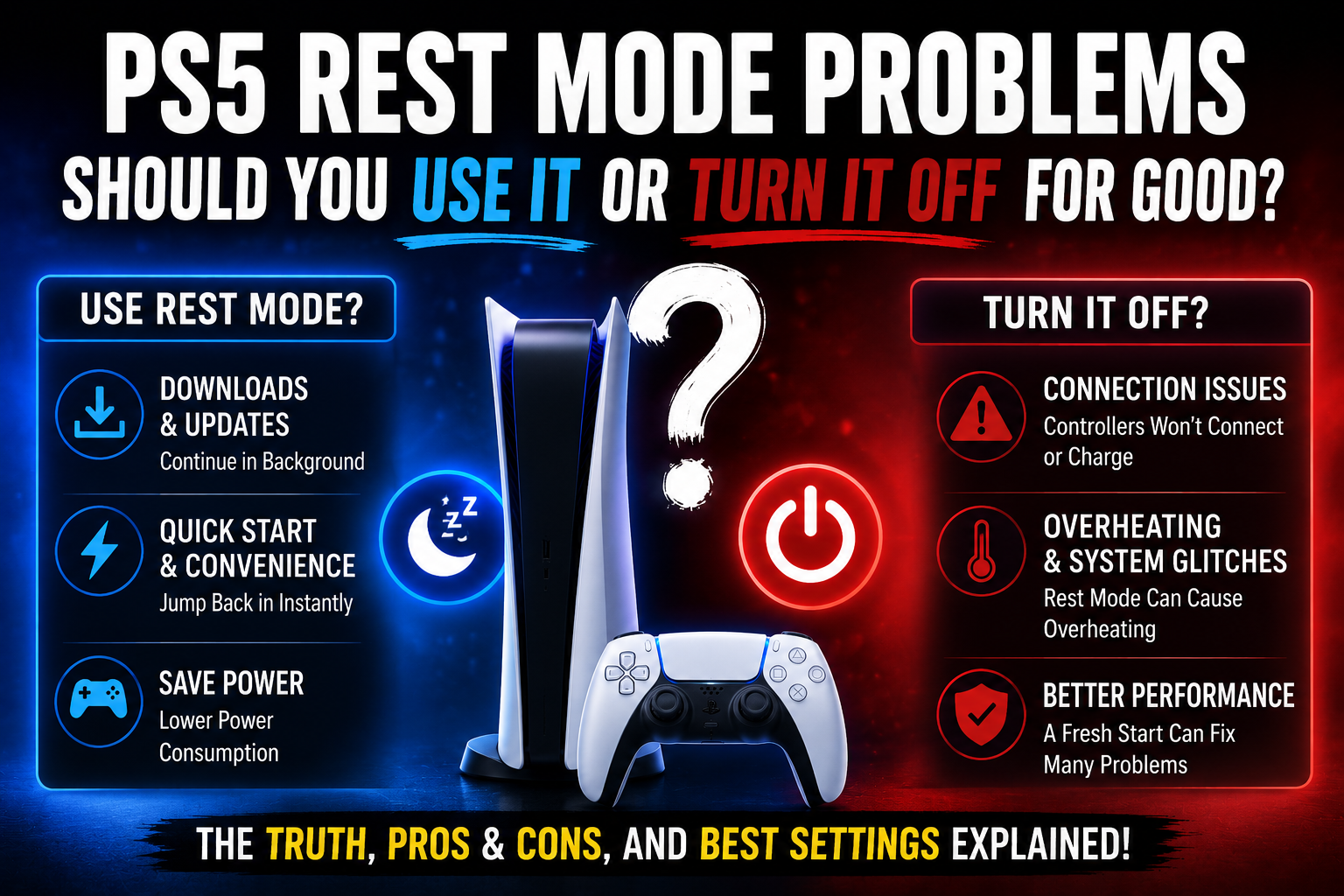
Should You Use PS5 Rest Mode or Turn It Off?
This is the question most players actually want answered. Here’s an honest breakdown:
Use rest mode if:
- Your PS5 is on a stable, dedicated power supply
- You don’t have external USB drives connected
- You’ve updated to the latest system software
- You want the convenience of background downloads and quick resume
Turn rest mode off if:
- You’ve had multiple storage repair messages in a short period
- You keep losing unsaved game progress due to rest mode crashes
- Your console regularly fails to wake up
- You use multiple external drives regularly
To disable rest mode completely: Settings → System → Power Saving → Set Time Until PS5 Enters Rest Mode → Don’t Put in Rest Mode (set both options).
This won’t affect any other PS5 features. Your games, saves, and PSN account all work exactly the same. You’ll just need to manually turn the console off and on, and downloads will only happen while the PS5 is fully powered.
The honest truth is that most current PS5 users with up-to-date firmware don’t experience serious rest mode problems. Sony has improved stability considerably since launch. But if you’re one of the players still seeing crashes, the fixes above — particularly disconnecting external drives and disabling HDMI Device Link — resolve the issue in the vast majority of cases.
Frequently Asked Questions
Will disabling rest mode affect my PS5 performance? No. Rest mode is purely about power-saving convenience. Turning it off has zero effect on game performance, loading speeds, or any other console feature.
Can rest mode damage my PS5? In normal use, no. The storage repair process that sometimes runs after a rest mode crash is the console protecting itself — it’s a safety mechanism, not a sign of hardware failure. Repeated crashes without fixes could theoretically stress the SSD over a very long period, but this is not a practical concern for the vast majority of users.
Is rest mode safe for PS5 Pro? Yes. The PS5 Pro uses the same rest mode system as the standard PS5. The same fixes and settings apply.
Why does my PS5 say “improper shutdown” after rest mode? This message appears when the console detects its storage wasn’t properly closed before the last shutdown — which happens when rest mode crashes. Rebuilding the database in Safe Mode clears this.
Final Thought
PS5 rest mode problems are real — but they’re not inevitable. A few setting changes and the habit of disconnecting external drives before sleeping your console will eliminate most issues for most players.
If you’ve already been dealing with controller charging issues on top of rest mode problems, the two are often connected. Our guide on PS5 controller not charging in rest mode covers the USB power settings in more detail and pairs well with the fixes here.
For the official Sony guidance on rest mode and safe shutdown practices, the PlayStation support page has the most current information directly from the source.
Adjust the settings, stay updated, and rest mode will most likely work exactly the way it was intended to.