
You plug your DualSense in before bed, confident it’ll be fully charged by morning. You wake up, grab the controller, and the battery is exactly where you left it. Dead. Still. Nothing.
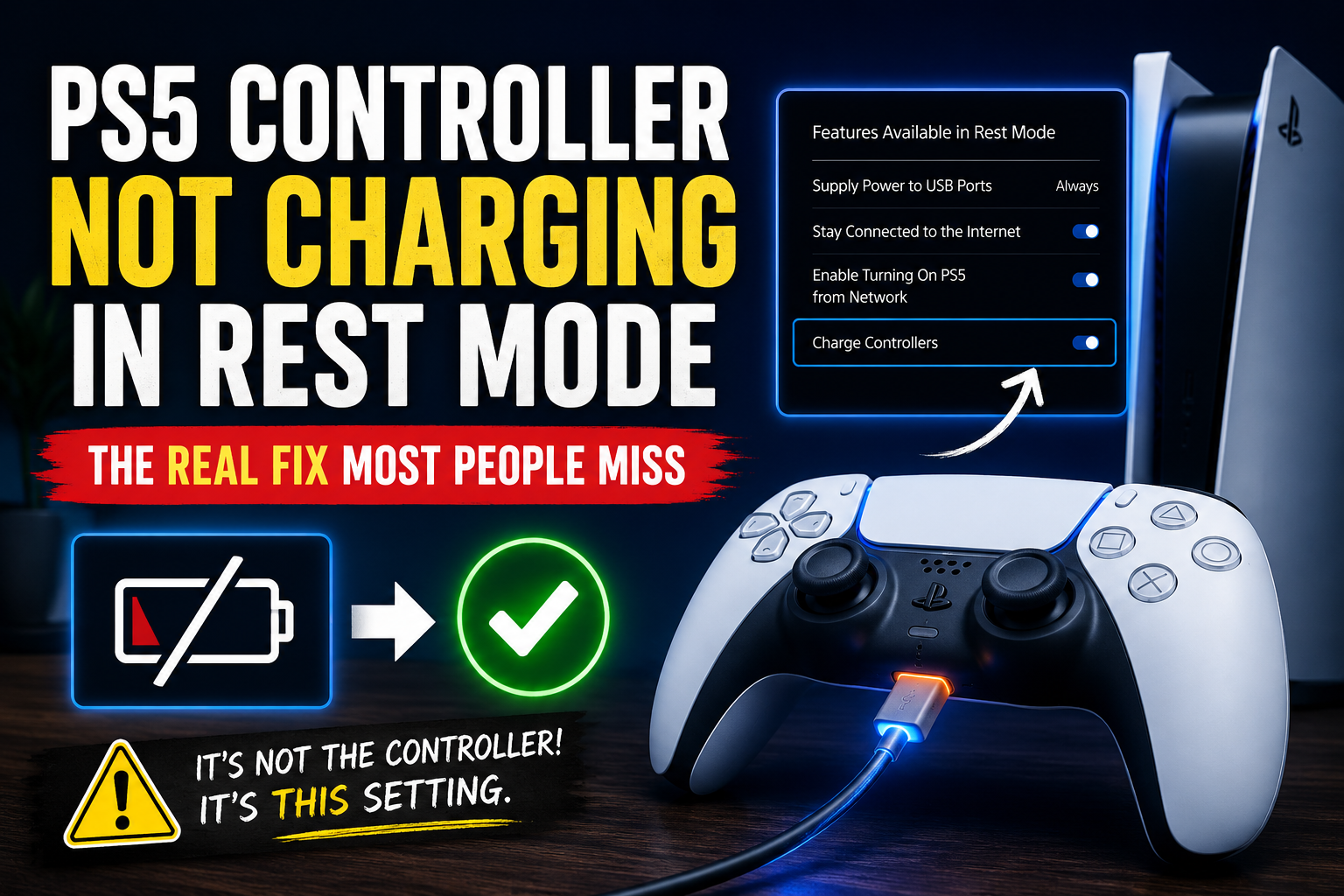
If this has happened to you, you’re not imagining things — and your controller probably isn’t broken. There’s one specific setting buried in your PS5’s menu that Sony enabled by default, and it silently stops your controller from charging the moment your console enters rest mode. Most players have no idea it exists.
This guide covers exactly why your PS5 controller is not charging in rest mode, the most common causes in order of likelihood, and every fix you can try right now — starting with the simplest.
Why Your PS5 Controller Stops Charging in Rest Mode
Before jumping into fixes, it helps to understand what’s actually happening here.
When your PS5 goes into rest mode, it doesn’t stay fully powered. It drops into a low-power sleep state to save electricity. Part of that energy-saving behavior involves cutting power to the USB ports — and if your USB power is turned off in the settings, your DualSense controller stops receiving charge the moment the console sleeps.
There’s also a communication aspect at play. The PS5 doesn’t simply push power through the cable blindly. The console and controller need to “handshake” — a brief exchange of information to confirm charging should begin. If the cable doesn’t support data transfer, or if there’s a software glitch freezing the process, the controller won’t charge even if everything looks physically connected.
Most of the time, the fix takes two minutes. Let’s start with the most common cause.
Fix 1 — Check Your USB Power Settings (This is Why It’s Happening for Most People)
This is the number one reason PS5 controllers don’t charge in rest mode, and it’s completely fixable in about 30 seconds.
By default — or after certain system updates reset your preferences — the PS5 is configured to supply no power to USB ports while in rest mode. You plug everything in, the console sleeps, and charging quietly stops.
Here’s how to fix it:
- Turn on your PS5 and go to Settings (the gear icon, top right)
- Select System
- Go to Power Saving
- Select Features Available in Rest Mode
- Find Supply Power to USB Ports
- Change it from Off to 3 Hours or Always
That’s it. Setting it to 3 Hours is the better choice for most people — it gives the controller enough time to reach a full charge and then cuts power to protect the battery long-term. If you regularly leave your controller plugged in overnight and want it topped up no matter what, set it to Always.
Once you’ve made this change, put your PS5 back into rest mode with the controller connected and check it after a couple of hours. For the majority of players, this single fix resolves the problem completely.
Fix 2 — The USB Cable Might Be the Problem
This is the second most common cause, and it catches a lot of people off guard.
Not every USB-C cable is built the same. Many of the cables lying around the house — from old earbuds, budget chargers, or cheap accessories — are charge-only cables. They carry power, but they don’t carry data. Since your PS5 needs to communicate with the controller to initiate charging, a data-less cable breaks that process entirely.
The cable that came with your PS5 is a proper USB-C data cable. If that one has gone missing and you’ve been using a random replacement, that’s very likely your problem.
How to test it: Plug the same cable into a laptop or PC and see if your controller shows up as a connected device. If the computer doesn’t recognize the controller at all, you’ve found the issue. Swap it for a quality USB-C cable that supports both power and data.
Also check the cable for any visible damage — fraying near the connector ends, kinks, or a loose fit when plugged in. A damaged cable might work intermittently, which explains why charging works sometimes but not always.
Fix 3 — Try the Rear USB Ports Instead of the Front
Here’s something many PS5 owners don’t know: the front USB port and the rear USB port on the PS5 behave differently in rest mode.
The front USB-A port (the wider one) has been reported by many players to deliver inconsistent power during rest mode, particularly on launch model PS5 consoles. The rear USB-C port, on the other hand, tends to be more reliable for charging during rest mode.
If you’ve been charging through the front port and experiencing issues, try switching to the rear USB-C port using a USB-C to USB-C cable. Many players have found this alone resolves the problem without any settings changes needed.
Fix 4 — Reset the DualSense Controller
If the settings are correct, the cable is solid, and you’re using the right port but still getting no charge, a controller reset is your next step.
The DualSense has a small reset button on its back panel, just near the L2 trigger. It’s a tiny pinhole — you’ll need a straightened paperclip or a SIM ejection tool to press it.
Here’s how to do it properly:
- Turn off your PS5 completely — not rest mode, fully off
- Find the small pinhole on the back of the controller near the L2 button
- Press and hold the button inside with a paperclip for 5 full seconds
- Release, then connect the controller to the PS5 with a USB-C cable
- Press the PS button to pair it again
This clears any software freeze or communication error that was blocking the charging process. It doesn’t erase anything — it just resets the controller’s internal state.
Fix 5 — Clean the USB-C Port
Over time, pocket lint, dust, and debris pack into the USB-C port on the bottom of your DualSense. The cable appears to be plugged in all the way, but the connection isn’t fully seated — and that gap is enough to stop charging.
Take a close look at the port with a torch. If you can see any material inside, use a dry toothpick or a can of compressed air to gently clear it out. Be careful — the pins inside are small and easy to bend. Never use anything metal inside the port.
Once cleaned, plug the cable in again. You should feel it seat more firmly than before if debris was the issue.
If the port feels loose or wobbly regardless of debris, that’s physical damage and will likely need a professional repair or a charging dock that bypasses the USB-C port entirely.
Fix 6 — Update the DualSense Firmware
Sony periodically releases firmware updates for the DualSense controller itself — separate from PS5 system updates. Outdated controller firmware can cause charging communication issues, especially after a major PS5 software update changes how the system interacts with accessories.
To check and update your controller firmware:
- Go to Settings on your PS5
- Select Accessories
- Choose Controller (General)
- Select DualSense Wireless Controller Device Software
- Follow the on-screen instructions if an update is available
Keep the controller connected via USB during the update process. This takes only a couple of minutes and can fix persistent charging quirks that nothing else seems to resolve.
Fix 7 — Power Cycle the PS5 Completely
Sometimes the issue isn’t the controller at all — it’s the PS5 itself getting stuck in a software state that disrupts USB power management.
A full power cycle clears this:
- Hold the PS button on your controller and select Turn Off PS5 (not rest mode)
- Once the console is fully off, unplug the power cable from the back
- Wait 60 seconds — this drains any residual power
- Plug it back in and turn the PS5 on normally
After the console restarts fresh, plug your controller back in and test charging again. This takes under two minutes and fixes more problems than most players expect.
When Nothing Works — What to Try Next
If you’ve gone through every fix above and the controller still won’t charge, here’s how to figure out whether it’s a hardware issue:
Test with a different controller if you have one available. If a second DualSense charges fine in rest mode with the same cable and port, your original controller likely has a battery or hardware problem.
Try a charging dock. Charging docks connect through the controller’s bottom charging terminals rather than the USB-C port, bypassing any port damage entirely. This is a practical long-term solution if your USB-C port is physically worn.
Check your warranty. If your PS5 is under Sony’s warranty period (typically one year from purchase), a controller that won’t charge despite all troubleshooting steps may qualify for a free replacement. Contact PlayStation Support with your purchase details before spending money on a new controller.
The Quick Fix Checklist
Before you close this page, run through this in order:
- ✅ Set USB Power in Rest Mode to 3 Hours or Always
- ✅ Swap the cable for a proper USB-C data cable
- ✅ Switch to the rear USB-C port instead of the front
- ✅ Reset the DualSense using the pinhole button
- ✅ Clean the USB-C port on the controller
- ✅ Update DualSense firmware via Settings → Accessories
- ✅ Power cycle the PS5 completely
Work through these in sequence and you’ll almost certainly find the fix before reaching the end of the list.
Final Thought
The PS5 controller not charging in rest mode is one of those problems that feels like a hardware failure but is almost never that serious. In the vast majority of cases, it comes down to one hidden setting, a cable that doesn’t do what you think it does, or a controller that just needs a reset.
Fix the settings first. Swap the cable second. Everything else comes after.
Once you’re back up and running, it’s also worth checking how you’re managing your PS5’s storage — a full console can sometimes cause background processes to misbehave, which affects everything from downloads to USB power delivery. Our guide on how to manage PS5 storage when it’s full covers exactly what to delete and what to keep.
For official documentation on how adaptive charging works in rest mode, Sony’s PlayStation support page has the most up-to-date information directly from the source.