

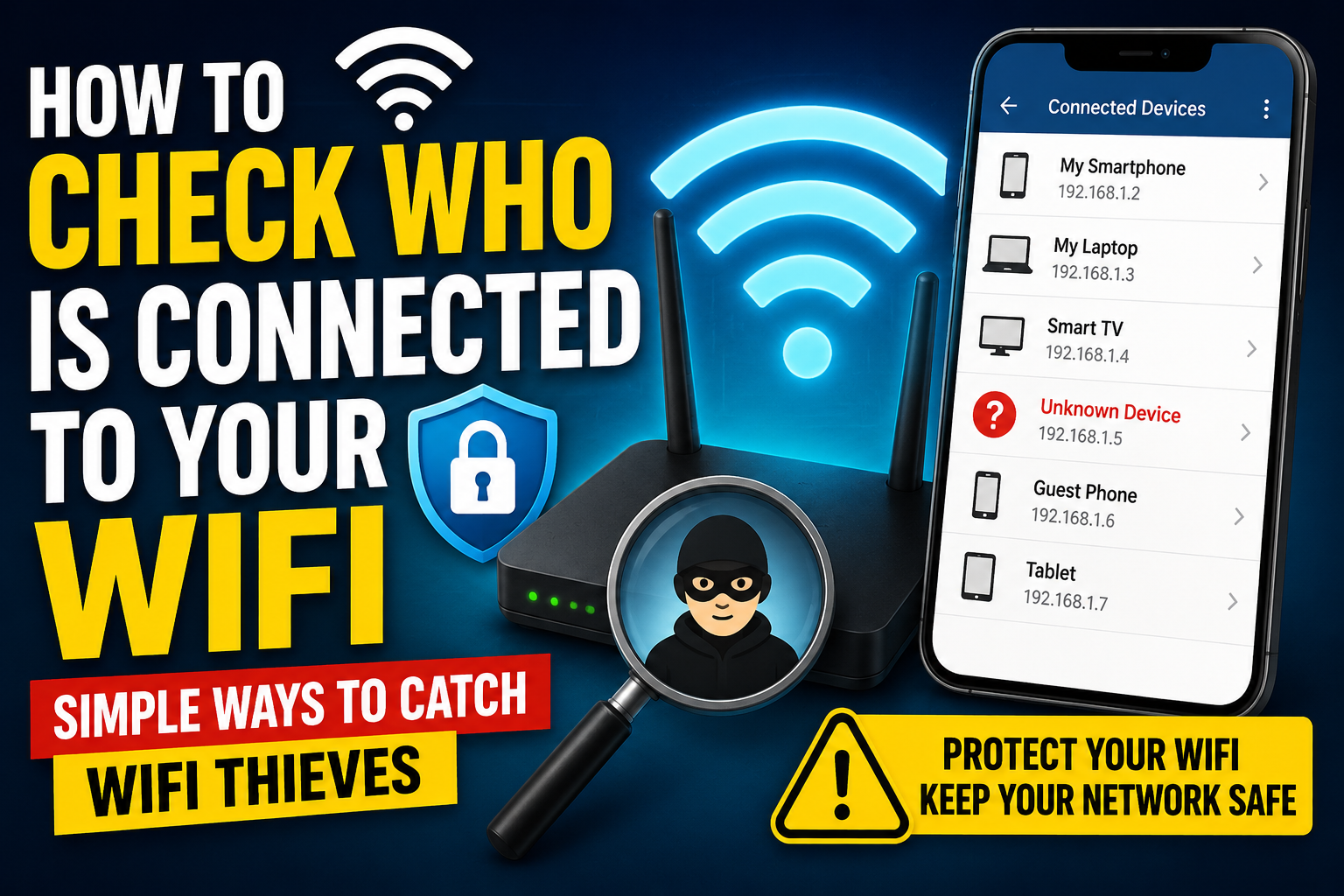
Your internet has been crawling all week. Netflix keeps buffering. Pages take forever to load. You’ve restarted the router twice. And then it hits you — what if someone else is using your WiFi?
It’s more common than you’d think. A neighbor who guessed your password, a guest who never forgot the network, an old device still connected in the background — any of these can quietly drain your bandwidth. The good news is that finding out exactly how to check who is connected to your WiFi takes less than two minutes. No technical skills needed.
This guide covers every method — router admin panel, mobile app, and Windows — so you can see every device on your network right now.
Signs Someone Might Be Using Your WiFi Without Permission
Before jumping into the steps, here are the most common red flags:
- Internet is slower than usual — especially at night when you’re not using much
- Router lights are blinking when all your devices are idle or off
- An unfamiliar device name appears in your network list
- Your data cap hits faster than it should based on your normal usage
Any one of these alone could have an innocent explanation. But two or three together? Worth investigating.
Method 1 — Check Through Your Router’s Admin Panel (Most Reliable)
This is the most accurate method. Your router knows every single device connected to it — no app needed, works on any device.
Step 1: Find Your Router’s IP Address
Open any browser and type one of these into the address bar. The correct one depends on your router brand:
| IP Address | Common Brands |
|---|---|
| 192.168.1.1 | TP-Link, Netgear, ASUS, D-Link, Huawei, Linksys |
| 192.168.0.1 | TP-Link, Netgear, D-Link, Belkin |
| 192.168.100.1 | Huawei, ZTE, Motorola, PTCL routers |
| 192.168.8.1 | Huawei mobile WiFi/MiFi devices |
| 192.168.10.1 | PTCL, Motorola, Wavlink |
| 10.0.0.1 | Apple AirPort, Belkin, Cisco |
| 192.168.2.1 | Linksys, Belkin, ASUS |
Not sure which one is yours? The easiest way — check the sticker on the bottom or back of your router. The IP address is almost always printed there.
You can also find it on your device: on Windows, open Command Prompt and type ipconfig then look for “Default Gateway.” On Mac, go to System Settings → Network → WiFi → Details → TCP/IP. On Android or iPhone, tap your connected WiFi name and look for “Gateway” or “Router” in the details.
Also note: TP-Link routers can also be accessed via tplinkwifi.net and Netgear via routerlogin.net directly in the browser.
Step 2: Log In to Your Router
A login page will appear. The most reliable way to find your credentials is the sticker on the back or bottom of your router — most modern routers, especially ISP-provided ones like PTCL, Jazz, and StormFiber, now print a unique password directly on the label rather than using a generic default.
If the sticker is missing, here are common brand defaults:
| Brand | Username | Password |
|---|---|---|
| TP-Link (older models) | admin | admin |
| TP-Link (newer models) | admin | Create on first login |
| Huawei | admin | admin |
| ZTE | admin | admin or 1234 |
| Netgear | admin | password |
| ASUS | admin | admin |
| D-Link | admin | (blank) |
| Linksys | admin | admin |
| PTCL (Huawei) | admin | admin or check label |
| Tenda | admin | (blank) |
Important: Many newer routers — especially TP-Link’s latest models — require you to create a custom password during first-time setup. If you’ve done this and forgotten it, the only way back in is to press and hold the Reset button on the back of the router for 10 to 15 seconds, which restores factory settings.
Step 3: Find the Connected Devices List
Once inside the router dashboard, look for the connected devices section. The exact location varies by brand:
| Brand | Where to Find Connected Devices |
|---|---|
| TP-Link | Advanced → Network → DHCP Server → DHCP Clients List |
| Netgear | BASIC → Attached Devices (or via Nighthawk app → Device Manager) |
| ASUS | Network Map → Clients section on main dashboard |
| D-Link | Status → Wireless or Home Network → Connected Clients |
| Linksys | Network Map → Smart WiFi Tools navigation |
| Huawei | Home → My WiFi → Connected Devices |
| PTCL | Status → Connected Devices or DHCP Clients |
Step 4: Review Every Device on the List
You’ll see a table showing device names, IP addresses, and MAC addresses. Go through the list and match each one to a device you own.
How to identify your own devices:
- Phones usually show your device name — “iPhone-Zurnain” or “Samsung-Galaxy-S24”
- Laptops show computer names like “DESKTOP-ABC123” or “MacBook-Pro”
- Smart TVs show brand names — “Samsung-SmartTV” or “LG-TV”
- Game consoles show as PlayStation or Xbox
- Smart plugs and bulbs often show strange names like “Espressif,” “Tuya,” or “Murata” — these are IoT device chip manufacturers, not intruders. They’re your smart home devices.
Easiest identification trick: Turn off your devices one by one and refresh the page. When a device disappears from the list, you’ve identified it. Whatever stays on after everything in your home is off — that’s the mystery device.
Method 2 — Check Using the Fing App (Easiest on Mobile)
If you’d rather not deal with router login pages, Fing is the fastest alternative. It’s free, available on iOS and Android, and scans your entire network in seconds.
How to use it:
- Download Fing from the App Store or Google Play
- Open the app and tap Scan or Network Discovery
- Fing displays every device on your WiFi within seconds
- Each entry shows device name, IP address, MAC address, and manufacturer
Fing is particularly good at identifying devices by their network signature — it can often tell you whether something is a phone, laptop, smart TV, or gaming console. This makes spotting something unfamiliar much easier.
Method 3 — Check on Windows Using Command Prompt
Quick check without opening a browser or downloading anything:
- Press Windows key + R, type
cmd, press Enter - Type this command and press Enter:
arp -aThis shows all IP addresses and MAC addresses your computer has recently communicated with on the network. It’s a quick snapshot — not as complete as the router panel, but useful for a fast check.
Method 4 — Use Your Router’s Official App
Most router brands have companion apps that make this even simpler:
- TP-Link Tether — for TP-Link routers
- Netgear Nighthawk — Device Manager section
- ASUS Router app — Network Map on main screen
- Google Home — for Google Nest WiFi
- Huawei AI Life — for Huawei routers
Download your router’s app, sign in, and look for “Connected Devices” or “Device Management.” These apps often give a cleaner visual layout and let you block devices with a single tap.
How to Identify Unknown Devices on Your Network
Found a device you don’t recognize? Before panicking, here’s how to figure out what it actually is.
Look up the MAC address manufacturer: Go to macvendors.com and type in the first six characters of the MAC address. It tells you the company that made the device. “Murata” means Nintendo. “Hon Hai” is Foxconn — used in many electronics. This lookup solves most mysteries in seconds.
Check the device name carefully: Names like “ESP8266” or “ESP32” are microcontrollers used in smart home gadgets. “Raspberry-Pi” is a small computer. “Amazon” could be your Echo. These are not intruders.
Count your devices carefully: Phones, laptops, tablets, smart TVs, gaming consoles, smart speakers, security cameras, smart plugs, printers, and smart bulbs all connect to WiFi. A modern home easily has 15 to 25 connected devices — the number is almost always higher than people expect.
Found a Real Intruder? Do This Right Now
If you’ve confirmed there’s a device that doesn’t belong to anyone in your home:
Step 1: Change your WiFi password immediately Go to router admin panel → Wireless Settings → change the WiFi password. Every device gets disconnected. Only reconnect the ones you recognize.
Step 2: Change the router admin password too If someone had network access, they may have accessed your router admin panel as well. Change those credentials while you’re in there.
Step 3: Enable WPA3 or WPA2 encryption Go to Wireless Security settings. Use WPA3 if your router supports it, or WPA2 at minimum. WEP and plain WPA are outdated and easily broken.
Step 4: Disable WPS WiFi Protected Setup is a convenience feature that can be exploited. Turn it off under Wireless or Advanced settings unless you actively use it.
Step 5: Set up a guest network Give visitors your guest network password instead of your main one. It keeps their devices isolated from yours completely.
For a broader look at what’s actually threatening home networks right now, our guide on top cybersecurity threats and how to stay protected covers the most important risks in 2026 and practical steps to defend against them.
How to Prevent Unauthorized WiFi Access Going Forward
- Use a strong WiFi password — at least 12 characters, mix of letters, numbers, and symbols
- Check your device list monthly — a two-minute check catches problems early
- Update your router firmware regularly — security patches fix known vulnerabilities
- Never share your main WiFi password — use the guest network for visitors
- Upgrade routers older than 5 years — they likely don’t support WPA3 and may have unpatched security holes
For official router security guidance, Microsoft’s home network security support page has additional tips worth reading.
Frequently Asked Questions
Can someone use my WiFi without knowing my password? In rare cases — if your router uses WPS with a known vulnerability, or has outdated firmware with unpatched security holes. Disabling WPS and keeping firmware updated eliminates these entry points.
How many devices should normally be on my home WiFi? More than you’d expect. A typical home with two people can easily have 15 to 25 connected devices — phones, laptops, smart TVs, consoles, speakers, cameras, smart plugs, and printers all add up quickly.
Does changing my WiFi password kick everyone off? Yes — every wireless device disconnects immediately and must re-enter the new password. This is the fastest way to remove an unwanted user.
Is it illegal for someone to use my WiFi without permission? In most countries yes — unauthorized access to a computer network is a criminal offense. Practically speaking, changing your password and securing the network is the most effective solution.
Can I see devices that were connected before but aren’t online now? Some routers keep a DHCP lease history. Look for “DHCP Lease Table” or a similar section. Not all routers offer this — it depends on the model and firmware.
Final Thought
Checking who is connected to your WiFi takes two minutes through your router’s admin panel — and once you’ve done it the first time, the process becomes second nature.
If everything on the list belongs to you — great, stop worrying. If something unfamiliar shows up, you now have every tool needed to identify and remove it.
Make it a monthly habit. Your internet speed and your privacy will both thank you.