
The bill just hit. You glance at it, do the mental math, and realize you haven’t played a single Game Pass title in three weeks. Time to cancel — but where exactly do you go to do it?
Microsoft doesn’t make this obvious. The cancel button isn’t sitting on your Xbox home screen waiting for you. Depending on which device you’re on, the path is slightly different — and if you go looking in the wrong place, you’ll end up going in circles.
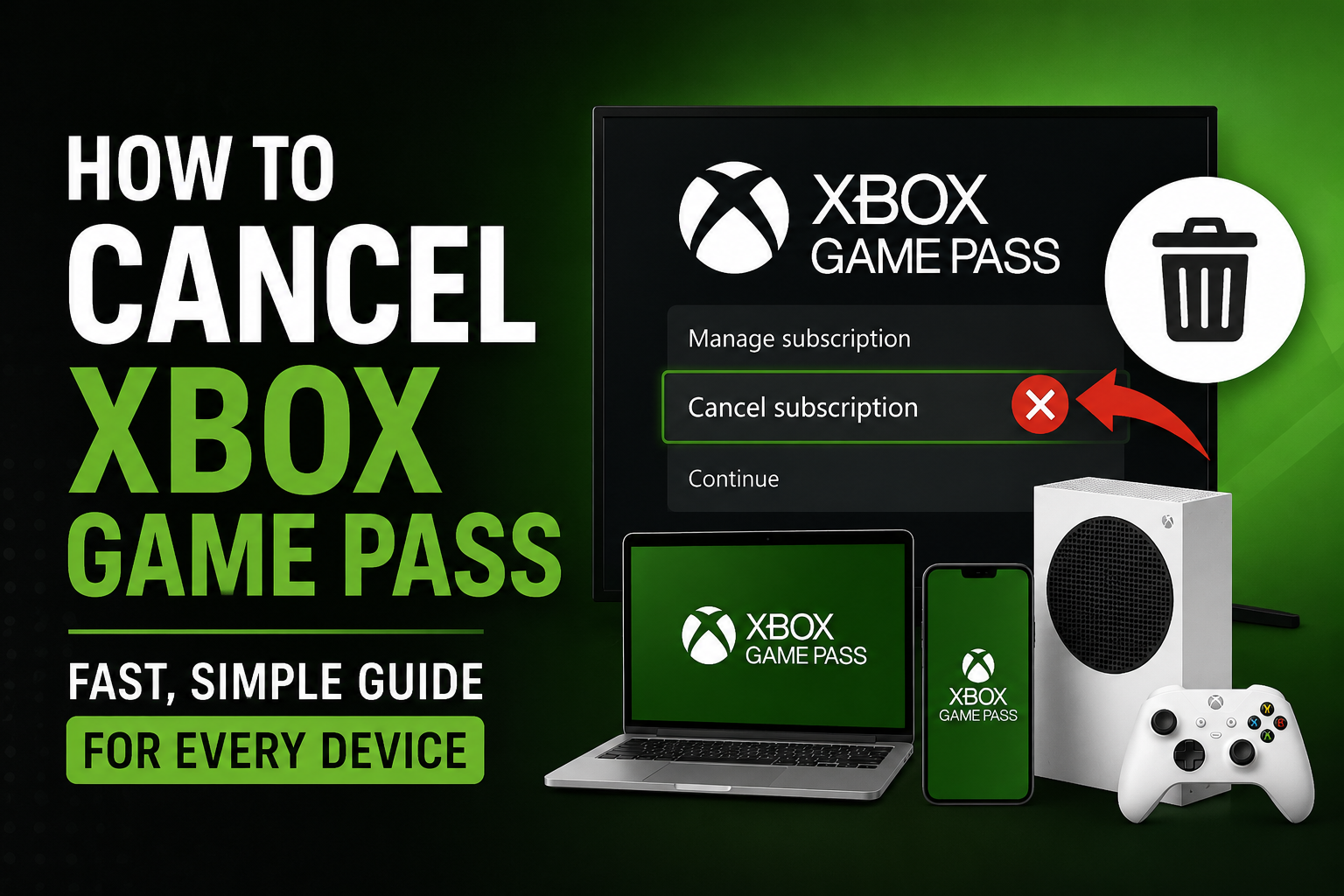
This guide shows you exactly how to cancel Xbox Game Pass on every device — mobile, PC browser, Xbox console — plus everything you need to know about what happens to your games and saves afterward.
Before You Cancel — Read This First
Two things worth knowing before you hit that cancel button.
Your access doesn’t stop immediately. When you cancel, your subscription stays active until the end of your current billing period. If you paid on the 10th and cancel on the 15th, you still have Game Pass until the 10th of next month. You’re not losing anything the moment you cancel.
Your game saves are safe. This is the question almost everyone asks — and the answer is reassuring. Your save data stays on your account even after cancellation. If you resubscribe later or buy a game you were playing through Game Pass, your progress picks up exactly where you left off.
What you do lose when the billing period ends: access to all Game Pass games, Xbox Cloud Gaming, EA Play (included with Ultimate), and online multiplayer through Xbox Live Gold. Games you purchased separately are completely unaffected.
Now, let’s cancel.
Method 1 — Cancel Xbox Game Pass on the Microsoft Website (Best Method — Works on Any Device)
This is the fastest and most reliable method. It works whether you’re on a phone, tablet, laptop, or desktop. Microsoft’s web account portal handles all subscription management in one place — this is where everything happens.
Step 1: Open a browser and go to account.microsoft.com/services
Step 2: Sign in with the Microsoft account linked to your Xbox gamertag — make sure it’s the right account if you have more than one
Step 3: Click Services & Subscriptions in the top navigation menu
Step 4: Find Xbox Game Pass (or Xbox Game Pass Ultimate, or PC Game Pass — whichever you’re subscribed to) in the list
Step 5: Click Manage next to the subscription
Step 6: Select Cancel Subscription
Step 7: Microsoft will show you a retention screen — possibly offering a discounted rate or a pause option. If you want to cancel completely, select Cancel Subscription again and confirm
Step 8: You’ll see a confirmation page and receive a confirmation email with your subscription end date
Done. This method works identically from a phone browser or a desktop computer — the layout is the same on both.
Method 2 — Cancel Xbox Game Pass on Mobile (iPhone & Android)
If you’re on your phone, the process is straightforward — but there’s one thing to know upfront.
The Xbox mobile app does not have a built-in cancel option. When you try to manage your subscription through the app, it redirects you to the Microsoft account page in your phone’s browser. This is completely normal — Microsoft handles all cancellations through the web portal.
Here’s the quickest way to do it from your phone:
Step 1: Open your phone’s browser (Safari, Chrome, or any browser)
Step 2: Go to account.microsoft.com/services
Step 3: Sign in with your Microsoft account
Step 4: Find your Xbox Game Pass subscription in the list
Step 5: Tap Manage then Cancel Subscription
Step 6: Confirm the cancellation — you’ll get a confirmation email
The whole process takes under two minutes on mobile. One important note for iPhone users: do not look for the cancellation in your Apple ID or App Store subscriptions. Microsoft doesn’t process Game Pass through Apple’s billing system, so it won’t appear there.
Method 3 — Cancel Xbox Game Pass on Xbox Console
You can manage your subscription directly from your Xbox Series X, Series S, or Xbox One controller — no phone or PC needed.
Step 1: Press the Xbox button on your controller to open the guide
Step 2: Navigate to Profile & System
Step 3: Select Settings
Step 4: Go to Account
Step 5: Select Subscriptions
Step 6: Find your Xbox Game Pass subscription in the list and select it
Step 7: Choose Cancel Subscription and follow the on-screen prompts to confirm
Your subscription will remain active until the current billing period ends. You’ll receive a confirmation email once the cancellation is processed.
Method 4 — Cancel Xbox Game Pass on PC
If you’re on a Windows PC, skip the Xbox app and go straight to the browser — it’s faster and more reliable.
Step 1: Open any browser on your PC — Edge, Chrome, Firefox, anything works
Step 2: Go to account.microsoft.com/services
Step 3: Sign in with your Microsoft account
Step 4: Find Xbox Game Pass under Services & Subscriptions
Step 5: Click Manage then Cancel Subscription
Step 6: Confirm and you’re done
The Xbox app on Windows sometimes adds extra navigation steps that the web portal skips entirely. Saving the link account.microsoft.com/services as a bookmark means you can cancel or manage any Microsoft subscription in seconds from any device.
What Happens to Your Games After You Cancel?
This is what most players worry about — so here’s the complete, honest breakdown:
Games you were playing through Game Pass: You lose access when your billing period ends. The game files stay on your console or PC so you don’t have to re-download them if you resubscribe — but they won’t launch without an active subscription.
Your game saves: Permanently safe. Saved to your Xbox account and synced to the cloud. Whether you resubscribe later, buy the game outright, or do nothing for months — your progress is there waiting.
Achievements: Permanent. Every achievement earned through Game Pass stays on your account forever, even after cancellation.
Games you purchased separately: Completely unaffected. Anything bought individually through the Xbox Store or as a physical disc works exactly as normal.
Online multiplayer: If you had Xbox Live Gold through Game Pass Ultimate, you lose access to online multiplayer in paid games when the subscription ends. Free-to-play games with their own free online play are unaffected.
EA Play and other bundled benefits: These end when Game Pass Ultimate ends, since they’re included benefits rather than standalone purchases.
Can You Get a Refund After Cancelling?
Microsoft’s standard policy is that subscription charges are non-refundable once the billing period has started. However, there are some exceptions worth knowing.
Within 14 days of purchase: If you cancel within 14 days of your initial purchase or most recent renewal and haven’t used the service heavily, you may be eligible for a full or partial refund. Microsoft reviews these on a case-by-case basis.
Accidental charges: If you were charged unexpectedly or didn’t realize a free trial had ended, contact Microsoft Support. They handle these situations regularly and will often issue a refund for a first-time occurrence.
Prepaid subscriptions: If you used a gift card or prepaid code, cancelling turns off auto-renewal but does not refund the prepaid balance. Your access continues through the full prepaid period.
To request a refund, visit Microsoft’s official support page and submit a request with your order number.
The Cancel Button Is Missing — What’s Going On?
A few situations cause the cancel option to disappear or look different:
“Turn on recurring billing” shows instead of “Cancel”: Good news — this means your subscription is already set to expire. It won’t auto-renew and you won’t be charged again. No action needed.
Subscribed through a third party: Some Game Pass subscriptions are managed through mobile carriers or retail partners. If Microsoft’s portal shows no cancel option, check whether you subscribed through your phone carrier — cancellation must happen through that platform.
Family or child account: If the subscription is managed by a parent or family organizer account, log into that account to cancel.
Past-due payment: If a previous payment failed, Microsoft may lock the account until the balance is cleared. Pay the outstanding amount first, then proceed with cancellation.
Try incognito mode: If the cancel button simply isn’t appearing, try opening the Microsoft account page in a private or incognito browser window. Cached account data sometimes causes the page to display incorrectly.
Should You Cancel or Just Pause?
Before you confirm the cancellation, Microsoft offers a subscription pause option in some regions — letting you freeze the subscription for one to three months without losing your account history.
If you’re between games, temporarily short on budget, or just waiting for something good to drop on the service, pausing might be worth considering. The option appears on the same screen before you confirm the full cancellation.
That said, if you’re ready to step away entirely, cancelling and resubscribing later is just as easy — and your game saves will still be there whenever you come back.
Frequently Asked Questions
Does cancelling Game Pass delete my games? No. Installed game files stay on your device. You just can’t launch them without an active subscription. Your saves are always kept on your account.
Can I resubscribe after cancelling? Yes, anytime. Search for Xbox Game Pass on the Microsoft Store or visit xbox.com/gamepass to resubscribe. Your previous save data syncs automatically.
Will I be charged again after cancelling? No. Once you cancel, recurring billing stops permanently. You will not be charged at the next billing date.
How do I know the cancellation went through? You’ll receive a confirmation email from Microsoft. You can also check your subscription status at account.microsoft.com/services — it will show an expiry date instead of a renewal date.
Can I cancel mid-month and get a partial refund? Generally no for mid-period cancellations after 14 days. Contact Microsoft Support if you believe you have a valid reason — they handle exceptions on a case-by-case basis.
What if I subscribed through my phone carrier? You’ll need to cancel through your carrier’s account portal or customer service, not through Microsoft. The Microsoft portal won’t show a cancel option for third-party subscriptions.
Quick Method Summary
Not sure which method to use? Here’s the short version:
- On your phone: Open browser → account.microsoft.com/services → Manage → Cancel
- On PC: Open browser → account.microsoft.com/services → Manage → Cancel
- On Xbox console: Xbox button → Profile & System → Settings → Account → Subscriptions → Cancel
- iPhone users: Don’t look in Apple ID — go to the Microsoft website in Safari
All methods lead to the same result. The browser method is the most reliable on every device.
Final Thought
Cancelling Xbox Game Pass takes about two minutes once you know where to go. The Microsoft website method works on every device and is the most reliable path — bookmark account.microsoft.com/services and you’ll find it in seconds whenever you need to manage any subscription.
Your saves stay safe, your purchased games stay playable, and you can always come back whenever a game you want shows up on the service. There’s no penalty for leaving and no friction for returning.
If you want to sort out any other Xbox account details before your subscription ends — like finally updating your gamertag to something you actually like — our guide on how to change your Xbox gamertag on the Xbox app walks through the whole process in a few simple steps. And if you want to stay connected with friends even without Game Pass, check out our guide on how to add friends on the Xbox app — your friends list stays fully active after cancellation.