
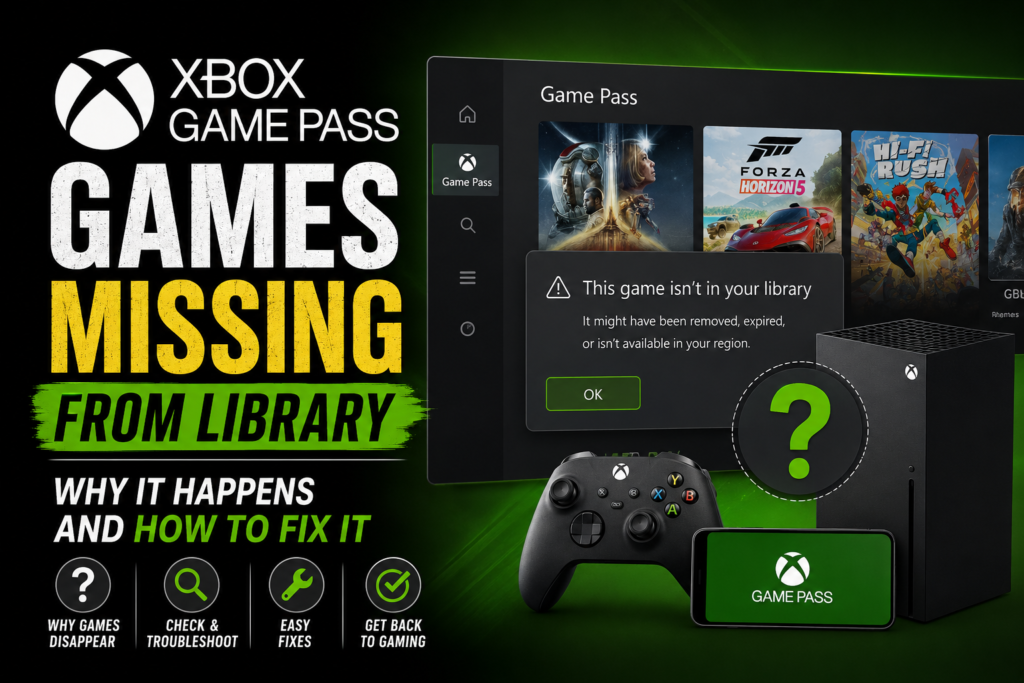
You open the Xbox app, head to your library, and something’s wrong. Games you were playing yesterday — gone. Or your entire Game Pass catalog has vanished. The library tab shows almost nothing, or the “Ready to Install” section is completely empty.
Whether your Xbox Game Pass is not working because the library is empty, games won’t load, or the app keeps crashing — this guide covers every fix in the right order.
Before you panic or contact support, there’s a good chance this is fixable in under five minutes. Xbox Game Pass library issues are more common than Microsoft would like to admit, and most of them come down to a handful of known causes — a broken Windows service, a sign-in mismatch, or a license sync that quietly failed in the background.
Here’s exactly why Xbox Game Pass games go missing from your library and every fix worth trying, in the right order.
Why Is Xbox Game Pass Not Working?
Understanding what’s actually going wrong saves time. There are six main reasons this happens:
Gaming Services is broken. This is the most common cause on PC. Gaming Services is a hidden Windows component that connects the Xbox app, the Microsoft Store, and your purchased licenses. When it breaks or gets into a corrupted state — which happens more than it should — your entire library can go blank even though everything is fine on Microsoft’s end.
Account mismatch between apps. If your Microsoft Store and Xbox app are signed in with different accounts, the Xbox app pulls licenses for the wrong one. Your library shows up empty or only partially populated.
Your Game Pass subscription lapsed. If a payment failed or the subscription period ended, Game Pass titles disappear immediately. Purchased games stay, but anything tied to an active subscription goes.
License type confusion. Console-only purchases don’t show up on PC. Only Xbox Play Anywhere titles include both a console and PC license. This catches a lot of people who buy games on console and then expect them to appear in the PC Xbox app.
Server-side outage. Xbox has experienced library outages before where the issue isn’t on your end at all — Microsoft’s licensing servers are the problem. Xbox Support typically posts about these on their official status page.
Xbox app or Windows needs an update. An outdated Xbox app can lose sync with current library data, especially after major Microsoft Store updates.
Fix 1 — Check Your Game Pass Subscription Status First
Before anything else, confirm your subscription is actually active.
Go to account.microsoft.com/services and check whether your Game Pass subscription shows an active renewal date or an expiry date. If payment failed or the subscription ended, you’ll need to resubscribe before any other fix will work.
If the subscription is active and payment is current — move on to the fixes below. This isn’t your problem.
Fix 2 — Sign Out and Back In (Both Apps)
This is the fastest fix for the account mismatch problem, and it works more often than it should.
On PC:
- Open the Xbox app
- Click your profile picture → Sign out
- Open the Microsoft Store
- Click your profile picture → Sign out
- Sign back into the Microsoft Store first
- Then sign back into the Xbox app
Order matters. Store first, Xbox app second. This sequence ensures licenses sync from the correct account in the right direction.
On console:
- Press the Xbox button
- Go to Profile & System → Settings → Account → Sign out
- Sign back in with your Microsoft account
- Wait 2-3 minutes for the library to repopulate
After signing back in, give it a few minutes. The library doesn’t always reload instantly — it takes a moment to pull down your full catalog.
Fix 3 — Use Microsoft’s Gaming Services Repair Tool
Microsoft built a dedicated tool specifically for the Gaming Services failures that cause blank libraries on PC. This is the official fix and it’s worth trying before anything more complicated.
How to find it:
Open the Xbox app → Settings → look for Troubleshooting or a Gaming Services option → run the repair tool. If you can’t find it within the app, search “Gaming Services Repair Tool” on the Xbox support page and download the standalone .exe directly.
Run it, let it complete, then restart the Xbox app. For a significant number of users, this alone restores the full library.
Fix 4 — Reinstall Gaming Services Manually (PC)
If the repair tool doesn’t fix it, removing and reinstalling Gaming Services from scratch usually does.
- Press Windows + X → click Terminal (Admin)
- Make sure you’re on PowerShell (not Command Prompt — use the dropdown at the top to switch)
- Run this command to remove Gaming Services completely:
powershell
Get-AppxPackage *gaming* | Remove-AppxPackage- Then reinstall it from the Microsoft Store by searching Xbox → find Gaming Services → install
- Restart your PC after installation
- Open the Xbox app and sign in again
This removes the corrupted installation entirely and gives you a clean copy. It’s more reliable than trying to repair a broken installation.
Fix 5 — Check the Filter Settings in Your Library
This one sounds too simple, but it’s genuinely how some “missing library” reports turn out.
In the Xbox app on PC:
- Click My Library in the left sidebar
- Click Show Filters at the top
- Make sure the filters aren’t hiding Game Pass titles — check that Game Pass is selected and not accidentally deselected
On Xbox console:
- Go to My Games & Apps
- Select See All
- Make sure you’re not accidentally filtered to only show “Installed” games — switch to “All” to see your full catalog including uninstalled titles
If someone accidentally toggled a filter, your entire catalog looks like it disappeared when it’s actually just hidden.
Fix 6 — Verify and Repair Game Files
For games that appear in your library but won’t launch or download properly, the verify and repair function can fix corrupted installation data.
In the Xbox app:
- Go to My Library
- Click Show Filters → check Installed
- Find the affected game
- Click the … (three dots) next to the Play button
- Select Manage → Files → Verify and Repair
This checks your installed files against what they should be and repairs anything corrupted — without making you download the entire game again.
Fix 7 — Check for Xbox App and Windows Updates
An outdated Xbox app regularly causes library sync failures, especially after Microsoft pushes updates to its licensing infrastructure.
Update the Xbox app:
Open Microsoft Store → click the Library icon (bottom left) → click Get Updates
Update Windows:
Press Windows + I → Windows Update → Check for Updates
Restart after installing updates. If the library issue started around the time you last updated Windows or the Xbox app — or specifically because you didn’t update — this is likely the cause.
Fix 8 — Hard Reset Your Xbox Console
For console users who’ve tried signing in and out without success, a hard reset often clears the license sync issue without deleting your games or saves.
- Hold the power button on the console for 10 full seconds until it completely shuts off
- Unplug the power cable from the back
- Wait 60 seconds
- Plug back in and power on normally
Once the console restarts, it renegotiates your account’s license status from scratch. Give it 3-5 minutes after sign-in before checking your library — the full catalog can take a moment to load.
If you use rest mode regularly and this kind of issue has happened before, our guide on PS5 rest mode problems covers similar library and session-state issues on PlayStation — the underlying mechanisms are different but the troubleshooting logic applies.
Fix 9 — Check Xbox Server Status
If none of the fixes above work and the problem appeared suddenly without you changing anything, check whether Xbox services are down.
Go to Xbox Support Status at support.xbox.com/en-US/xbox-live-status — this page shows real-time status for Xbox Live, Game Pass, and the Xbox app services.
If there’s a known outage affecting libraries or licensing, the fix isn’t on your end — it’s a wait. Microsoft usually resolves these within a few hours and posts updates when fixed.
Xbox Game Pass Not Working on Console?
One specific scenario trips up a lot of people and is worth addressing directly.
If you bought a game on your Xbox console — physically or digitally — and it’s not showing in the PC Xbox app, check whether it supports Xbox Play Anywhere. Only Play Anywhere titles include both a console license and a PC license in a single purchase.
Games that don’t support Play Anywhere are console-only. They will never appear in the PC Xbox app library, regardless of any troubleshooting you do. To play them on PC, you’d need to purchase the PC version separately or access them through Xbox Cloud Gaming if they’re available there.
If Your Game Pass Was Cancelled or Changed Tier
If you recently changed your Game Pass tier — from Ultimate to Core, or Core to Standard — some titles may no longer be available at your new tier. Game Pass catalogs differ between tiers, and games available on Ultimate may not be available on Core.
If you’re managing your subscription or considering changing tiers, our full guide on how to cancel Xbox Game Pass covers the exact steps for every platform, including what happens to your games and saves when you downgrade or cancel.
Quick Fix Checklist
Work through these in order:
- ✅ Check subscription status at account.microsoft.com/services
- ✅ Sign out of both Microsoft Store AND Xbox app → sign back in (Store first)
- ✅ Run Microsoft’s Gaming Services Repair Tool
- ✅ Check library filter settings — make sure nothing is accidentally hidden
- ✅ Reinstall Gaming Services via PowerShell (PC)
- ✅ Verify and repair game files for specific affected titles
- ✅ Update Xbox app and Windows to latest version
- ✅ Hard reset console — hold power button 10 seconds, unplug 60 seconds
- ✅ Check Xbox server status at support.xbox.com
Frequently Asked Questions
Why did all my Game Pass games disappear at once?
The most common cause is Gaming Services breaking on PC, or a sign-out/sign-in event that didn’t properly re-sync licenses. It can also happen after Xbox pushes a server-side update that temporarily disrupts license delivery.
My games are in my library but won’t download — is this the same problem?
Not exactly. Library visibility and download functionality are separate systems. If games show but won’t download, the verify and repair option and checking your download queue settings are the right next steps.
Will reinstalling Gaming Services delete my saved games?
No. Cloud saves stay on Microsoft’s servers regardless of local app reinstalls. Local saves on PC are stored separately from Gaming Services.
Can Xbox Game Pass games disappear if I switch regions?
Yes. Game Pass catalogs vary by region. If your account region changes, some titles may no longer be available in your library — they’ll disappear until the region is restored or until they’re available in the new region.
My library was fine, then an Xbox app update broke it. What do I do?
Roll back the update isn’t really an option with the Xbox app. Instead, use the Gaming Services Repair Tool first, and if that doesn’t work, the PowerShell reinstall of Gaming Services typically resolves post-update library breaks.
Final Thought
Xbox Game Pass not working is almost always fixable without contacting support — and rarely as serious as it first appears. A missing Xbox Game Pass library feels like a bigger problem than it almost always is. Gaming Services breaking on PC and account sign-in mismatches account for the vast majority of cases — and both are fixable without contacting support or waiting for Microsoft to intervene.
Start with the sign-out and sign-in fix. If that doesn’t do it, run the Gaming Services Repair Tool. Between those two steps, most people have their library back in under ten minutes.
Already sorted your library and looking for what to play next? Our full breakdown of Xbox Games Showcase 2026 covers every game announced with release dates — including everything coming to Game Pass day one through 2027.