
You chose your Xbox gamertag at 14. Now you’re 22, and “xX_DeathWolf99_Xx” is following you into every multiplayer lobby. We’ve all been there.
The good news? Changing your gamertag on the Xbox app takes less than two minutes — and if you’ve never changed it before, it won’t cost you a thing. This guide walks you through the exact steps on both the mobile app and the Windows Xbox app, plus a few things worth knowing before you commit to a new name.
Before You Change Anything — Read This First
There are a couple of rules that catch people off guard, so let’s get them out of the way early.
Your first change is free. When Microsoft creates your Xbox account, it sometimes auto-generates a gamertag for you. To give everyone a fair shot at a real name, Microsoft offers one complimentary change at any point. If you picked your own gamertag when you signed up, that may have already used your free change.
After that, it costs $9.99 USD. Every gamertag change beyond the first one comes with a fee. The exact price can vary slightly by region, but in most markets it’s around ten dollars. So take your time and choose wisely.
Character limits apply. Your new gamertag must be between 3 and 12 characters. Spaces are allowed and count toward the limit. You can’t start a gamertag with a number, and two consecutive spaces aren’t permitted either.
Duplicate names get a number suffix. Since 2019, Xbox lets multiple players share the same base name. If “ShadowBlade” is already taken, Xbox will give you “ShadowBlade#4821” — the number appears smaller, but it’s still visible in games and on leaderboards. The only way around this is to choose a name nobody else has claimed. You can’t pick your own suffix number; Xbox assigns it automatically.
How to Change Your Gamertag on the Xbox Mobile App (iPhone & Android)
This is the most convenient method if your phone is within arm’s reach. The steps are the same whether you’re on iOS or Android.
Step 1: Open the Xbox app Launch the Xbox app on your phone. If you don’t have it, download it free from the App Store or Google Play and sign in with your Microsoft account.
Step 2: Tap your profile icon In the bottom navigation bar, tap the icon that looks like a person — that’s your profile. It’s usually in the bottom-right corner of the screen.
Step 3: Tap your gamertag or profile name Your current gamertag will appear at the top of the screen. Tap on it to go into your profile view.
Step 4: Select “Customize profile” Once you’re on your profile page, look for the Customize profile option. Tap it.
Step 5: Tap your current gamertag You’ll see your existing gamertag displayed. Tap directly on it to open the gamertag editor.
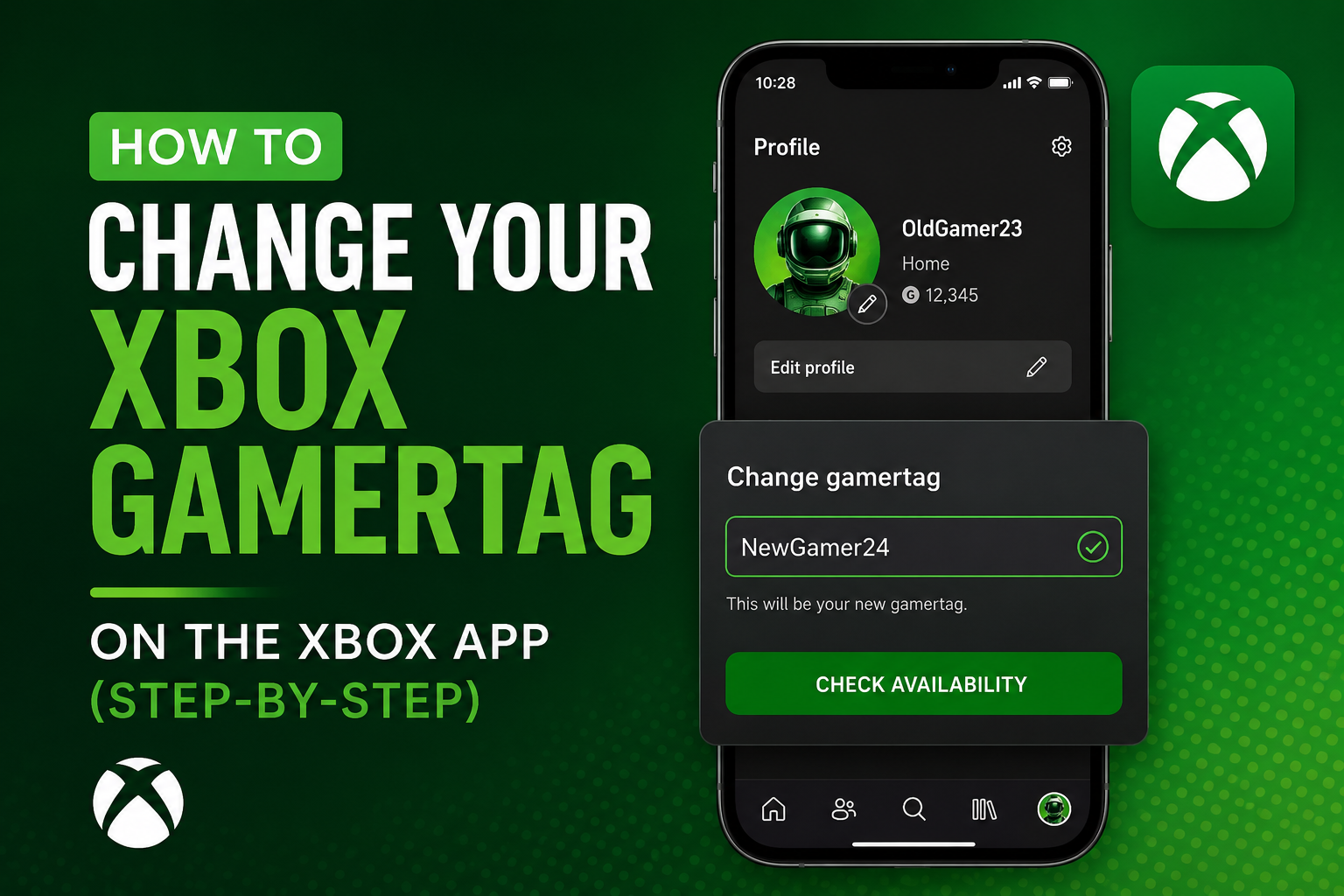
Step 6: Enter your new gamertag Type your desired name into the text box. Keep the character limit in mind (3–12 characters). The app won’t let you proceed if the format is invalid.
Step 7: Check availability Tap Check availability. Xbox will instantly tell you whether the name is free. If it’s taken, you’ll either need to try a variation or accept the auto-assigned suffix.
Step 8: Review and confirm Before you finalize, Xbox shows you a preview of how your new gamertag will look across the platform. Take a moment to double-check the spelling — there’s no undo button here.
Step 9: Tap “Change gamertag” Hit the confirm button. Your gamertag updates across the entire Xbox ecosystem almost immediately — games, Xbox Live, Game Pass, and even achievements all carry the new name.
How to Change Your Gamertag on the Xbox App for Windows (PC)
If you’re on a Windows PC, the process is nearly identical, just on a slightly larger screen.
Step 1: Open the Xbox app on your PC Click the Start menu, search for “Xbox,” and open the app. Sign in if prompted.
Step 2: Click your profile picture or gamertag Look to the top-left corner of the app. You’ll see your gamertag and profile image. Click on your name or avatar to go to your profile.
Step 3: Click “Customize profile” Your profile page will load. Look for the Customize profile button — it’s usually displayed near your banner image or gamer card.
Step 4: Click your current gamertag Just like on mobile, clicking your existing gamertag opens the editor.
Step 5: Type your new name and check availability Enter your desired gamertag, then click Check availability. The system will confirm whether it’s free or suggest you try something else.
Step 6: Confirm the change Review the preview, then click Change gamertag to lock it in. Done.
What Happens to Your Account After You Change It?
This is something a lot of people worry about unnecessarily. Your Xbox friends list stays intact. Your achievements, game history, and Xbox Live stats all carry over to the new gamertag without any issue. Your Microsoft account itself doesn’t change — only the display name does.
One thing to watch for: some older games that cached your gamertag locally might still show the old name temporarily. A quick restart of the game or app usually clears this up within minutes.
Tips for Choosing a Gamertag You Won’t Regret Later
Still stuck on what to name yourself? We’ve put together a list of 750+ Xbox Gamertag ideas — funny, cool, and unique names for boys and girls — to help you find something that actually fits your style.
- Keep it short. Shorter names are easier for teammates to type, call out in voice chat, and remember. “Frost” lands better than “FrostWolfGaming2026.”
- Avoid numbers at the end. Names like “GhostRider77” often date people. Unless the number means something to you personally, it can look like a filler choice.
- Think about how it sounds out loud. If you play with a team or stream, people will say your name. Test it out verbally before committing.
- Check it on other platforms too. If you’re building any kind of gaming presence, having the same name on Xbox, Steam, and social media keeps things clean and consistent.
- Avoid inside jokes. What’s hilarious in your friend group may make no sense — or worse, seem offensive — to the broader gaming community.
Common Issues and Quick Fixes
“Name is unavailable” even though it seems unique This sometimes happens with names that contain restricted terms or violate Xbox’s community standards. Try a slight variation.
The app isn’t showing the “Customize profile” option Make sure your app is updated to the latest version. Old versions sometimes have UI inconsistencies. Head to your device’s app store and check for updates.
Charged even though it was supposed to be free This usually means the free change was already used on the account. Check your account history at account.xbox.com. If you believe there was a billing error, Xbox Support can review it.
New gamertag not showing in a game Close the game completely and reopen it. If the issue continues, sign out of Xbox Live within the game and sign back in.
Final Thoughts
Changing your Xbox gamertag is one of those things that sounds more complicated than it actually is. Once you know where to tap, the whole process wraps up in under two minutes on both mobile and PC.
The one real decision is the name itself — and since it costs money to change again, that’s worth a few minutes of thought. Write down three options, sleep on it if you’re not sure, and then commit.
Your gamertag is how the Xbox community knows you. Make it something you’re actually proud to carry into every match.