

You just had an amazing game with a random player. They carried the team, called out every move perfectly, and you want to squad up again. But the match ends, the lobby dissolves, and — they’re gone.
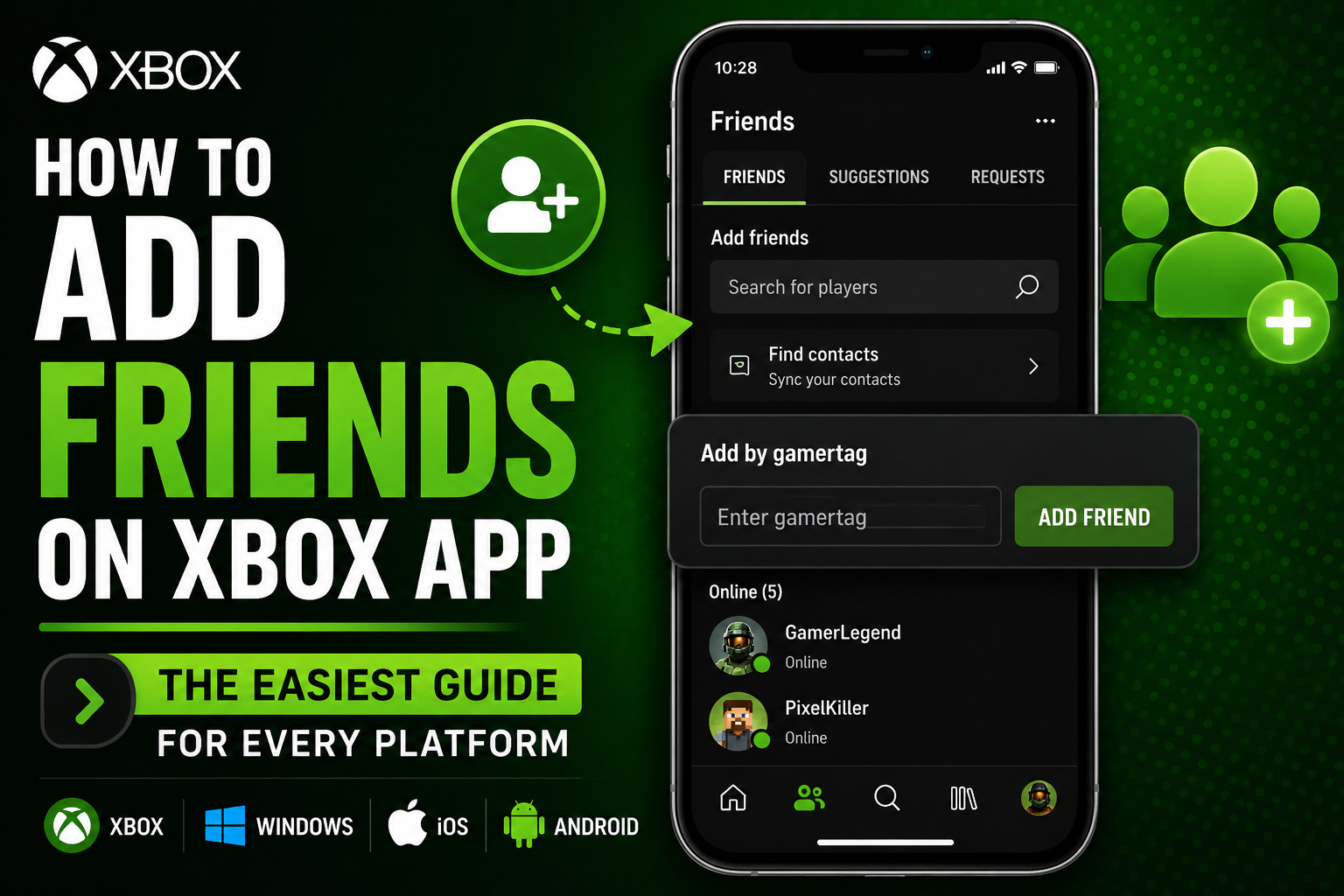
This happens to Xbox players every single day. And the fix is simple: add them as a friend before the session ends. Knowing how to add friends on Xbox app takes less than a minute, and it works whether you’re on your phone, Windows PC, or sitting at your console.
Here’s the complete guide — every method, every platform.
What You Need Before You Start
No complicated setup required. Just make sure:
- You have the Xbox app installed on your phone (iOS or Android) or Windows PC
- You’re signed in with your Microsoft account — the same one linked to your Xbox
- You know the gamertag of the person you want to add, or you’ve recently played with them
That’s it. If you haven’t set up your gamertag yet or want to change it, check out our guide on how to change your Xbox gamertag on the Xbox app before continuing — a clean gamertag makes it easier for friends to find you too.
How to Add Friends on Xbox App (Mobile — iPhone & Android)
This is the method most people reach for first, and it’s the quickest.
Step 1: Open the Xbox app on your iPhone or Android device. Download it free from the App Store or Google Play if you haven’t already.
Step 2: Sign in with your Microsoft account.
Step 3: Tap the Search icon at the bottom of the screen.
Step 4: At the top of the search screen, tap “People” — this switches the search from games to players.
Step 5: Type in the gamertag of the person you want to add. Pay close attention to spacing and exact spelling — gamertags are case-sensitive in search.
Step 6: Tap their profile from the search results.
Step 7: Tap “Add Friend” on their profile page.
They’ll receive a friend request notification. Once they accept, they’ll appear in your friends list and you’ll appear in theirs.
How to Add Friends on Xbox App (Windows PC)
Playing on PC through the Xbox app? The process is slightly different but just as straightforward.
Step 1: Open the Xbox app on your Windows PC. If it’s not installed, get it free from the Microsoft Store.
Step 2: Sign in with your Microsoft account.
Step 3: Look for the Friends & Clubs icon on the left sidebar — it looks like two people.
Step 4: In the search bar at the top of the Friends tab, type the gamertag of the person you want to add and press Enter.
Step 5: Find their profile in the results, then right-click on it and select “Open Profile.”
Step 6: On their profile page, click “Add Friend.”
Done. You’ll now appear as a follower on their list until they accept your request and add you back.
One thing worth knowing: on Xbox, there’s a difference between following someone and being friends. Following is one-way — like following someone on Twitter. Friendship is mutual — both people have added each other. Some features, like party invites, work better with mutual friends.
How to Add Friends From Recent Players (Mobile & PC)
Played with someone great but didn’t catch their gamertag in time? You can find them through your recent players list — one of the most underused features in the Xbox app.
On Mobile:
Step 1: Tap your profile picture in the bottom-right corner.
Step 2: Scroll down to find “Recent Players” — this shows everyone you’ve matched or played with recently across Xbox games.
Step 3: Tap the player’s name to open their profile.
Step 4: Tap “Add Friend.”
On PC:
Step 1: Go to the Friends tab in the left sidebar.
Step 2: Click “More options” (…) and then select “Recently played with.”
Step 3: Select the game title to expand the list of players you encountered.
Step 4: Click the profile you want and select “Add Friend.”
This method is especially useful in games where players don’t type in chat — you can still find them afterward.
If you’re someone who games privately and doesn’t want others finding you this way, you might want to check out our guide on how to appear offline on Xbox app — it gives you full control over your online visibility.
How to Add Friends on Xbox Console (Controller Method)
Prefer doing everything from your couch? You can add friends directly from the console — and it syncs with the app automatically.
Step 1: Press the Xbox button on your controller to open the guide.
Step 2: Navigate to the Social tab (the people icon).
Step 3: Select “Find someone” or use the search option.
Step 4: Type in the gamertag using the on-screen keyboard.
Step 5: Select their profile and choose “Add Friend.”
The request goes through immediately. Any friends added on console will appear in your Xbox app friends list automatically — everything stays in sync across devices.
Can’t Find Someone? Here’s Why
Searching for someone and getting no results is one of the most common frustrations with adding Xbox friends. Here’s what’s usually causing it:
Spelling or spacing is off. Gamertags are exact. “Shadow Blade” with a space is different from “ShadowBlade” without one. If someone has a suffix like “ShadowBlade#4821”, you may need to include the full tag.
Their privacy settings block it. Some players set their profiles to private, which prevents them from appearing in searches. In this case, they’d need to send you the request, or share their exact gamertag directly.
The gamertag has special characters. Modern Xbox gamertags support characters from over 200 languages. If the gamertag uses non-Latin characters, the Xbox app keyboard may not support typing them easily — ask them to send you a friend request instead.
The app needs an update. An outdated Xbox app sometimes has search glitches. Head to the App Store or Microsoft Store and check for pending updates.
For more details on how Xbox gamertags and the search system work, Microsoft’s official Xbox support page has the latest information directly from the source.
How to Accept a Friend Request on Xbox App
Someone added you and you want to accept? Here’s how.
On Mobile:
Tap your profile picture → scroll to “Friend Requests” → tap Accept next to the request.
On PC:
Click the Friends & Clubs icon → look for the “Requests” section at the top → click Accept.
On Console:
Press the Xbox button → go to Social → select “Friend Requests” → accept from there.
Once accepted, you’ll both show up in each other’s friends list and can invite each other to parties, games, and more.
How to Remove or Block Someone on Xbox App
Added the wrong person, or someone is bothering you? Easy to fix.
To remove a friend: Open their profile in the Xbox app → tap or click the three-dot menu (…) → select “Remove Friend.”
To block someone: Open their profile → tap the three-dot menu → select “Block.” Blocking prevents them from seeing your profile, messaging you, or sending requests.
Xbox takes harassment seriously and has a full reporting system built into every profile. If you’re dealing with a toxic player, the block and report options are right there on their profile page.
Frequently Asked Questions
How many friends can I have on Xbox? Xbox allows up to 1,000 friends on your friends list. You can follow an unlimited number of people beyond that.
Do I need Xbox Live Gold or Game Pass to add friends? No. Adding friends is free and doesn’t require any paid subscription. You only need a free Microsoft account.
Can PC players and console players be friends on Xbox? Yes. Xbox friends work across console and PC — you’ll appear in each other’s lists regardless of what device you’re playing on. Some games even support cross-play between console and PC friends.
Why does it say “follower” instead of “friend”? You’ve added them, but they haven’t added you back yet. Once they accept your request, it changes to a mutual friendship.
Quick Recap
Adding friends on Xbox is fast once you know where to look. Here’s the short version:
- Mobile: Search icon → People → type gamertag → Add Friend
- PC: Friends tab → search gamertag → Open Profile → Add Friend
- Recent Players: Profile → Recent Players → Add Friend
- Console: Xbox button → Social → Find someone → Add Friend
Building a good friends list makes every game better — squad invites, party chat, and shared game sessions all become effortless once your crew is connected.
Speaking of being connected, if you’re looking to give yourself a fresh identity before adding new friends, here’s our step-by-step guide on how to change your Xbox gamertag — and if you need inspiration for the perfect name, browse our full list of 750+ Xbox gamertag ideas for boys and girls.
For any account or privacy questions, you can always visit Xbox Support directly for official help.