
You hop on Xbox to play one quiet game. Within 30 seconds, three friend requests, two party invites, and a message asking “wanna play?” Your chill session? Gone.
Sound familiar? There’s a dead-simple fix — and most Xbox players have no idea it exists. You can appear offline on the Xbox app in literally three taps, whether you’re on your phone or PC. No one gets notified. No one sees you online. You just… disappear.
Here’s exactly how to do it.
What Does “Appear Offline” Actually Mean on Xbox?
Before the steps, let’s clear up a common confusion — because “appear offline” and “going offline” are two very different things.
Appearing offline means your friends see your status as offline, but you’re still fully connected to Xbox Live. You can still play online games, access Game Pass, join parties, and do everything you normally would. The only difference is that nobody on your friends list knows you’re there.
Going offline (actual offline mode) is different — it cuts your console off from Xbox servers entirely. You can only play locally installed games, and online features stop working.
So when you want privacy without losing any functionality, appearing offline is the move — not going offline.
How to Appear Offline on Xbox App (Mobile — iPhone & Android)
This is the fastest method. You don’t even need to be near your console.
Step 1: Open the Xbox app on your iPhone or Android. If you don’t have it, download it free from the App Store or Google Play.
Step 2: Sign in with your Microsoft account — the same one linked to your Xbox.
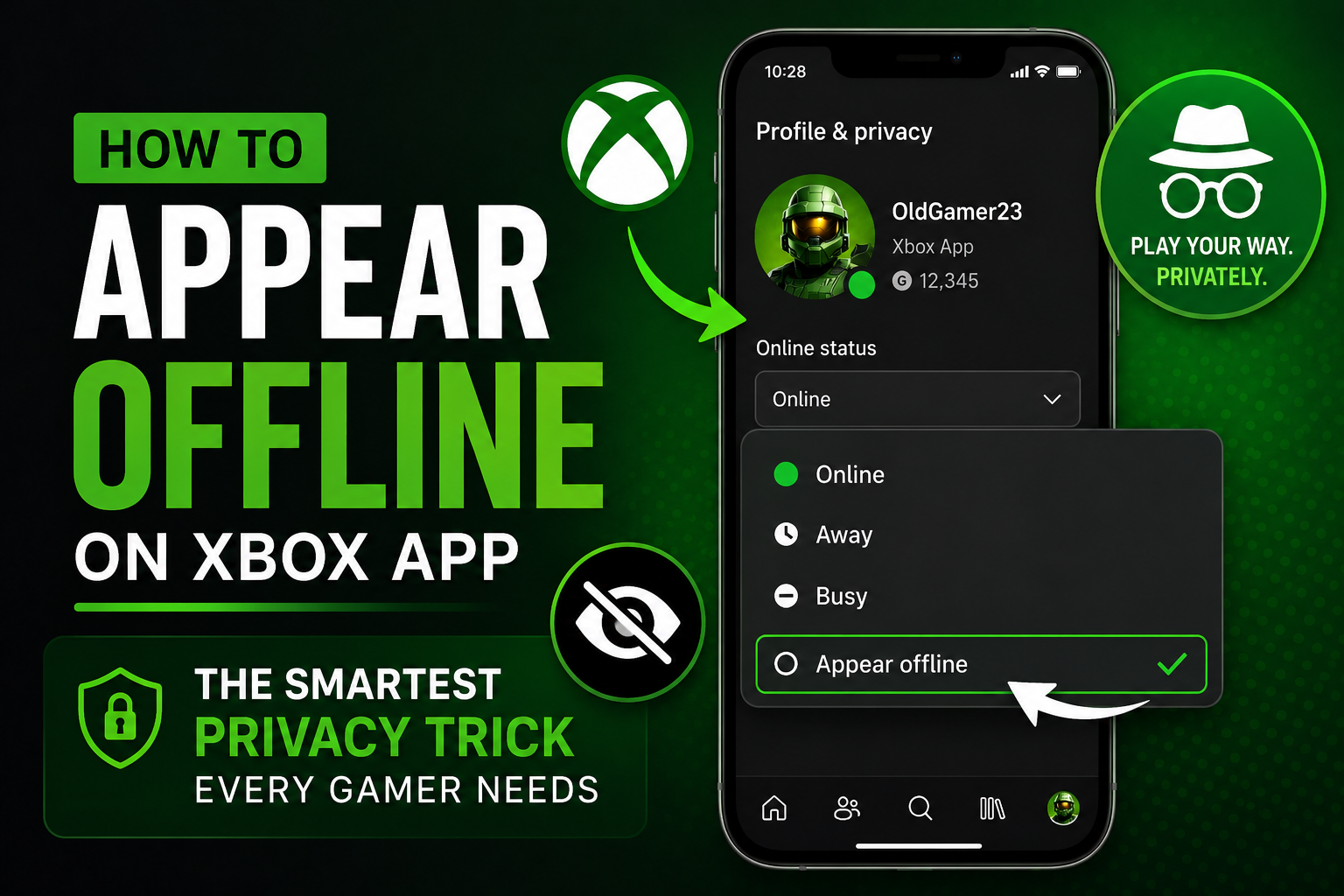
Step 3: Tap your profile picture in the bottom-right corner of the screen.
Step 4: Just below your gamertag and profile picture, you’ll see your current status — it likely says “Appear Online.” Tap it.
Step 5: Select “Appear Offline” from the options.
That’s it. Your status changes instantly across the entire Xbox platform — console, PC, and app. Friends already looking at your profile will see you as offline within seconds.
Alt text suggestion for screenshot: “Xbox mobile app appear offline option under profile picture”
How to Appear Offline on Xbox App (Windows PC)
If you’re on a Windows PC and playing through the Xbox app, the process is just as quick.
Step 1: Open the Xbox app on your Windows PC. Search for it in the Start menu if you can’t find it.
Step 2: Sign in with your Microsoft account.
Step 3: Click your profile picture or gamertag in the top-left corner of the app.
Step 4: A small dropdown will appear showing your online status. Click on it.
Step 5: Select “Appear Offline.”
Done. Your status will update immediately. You can now game in peace without anyone knowing you’re on.
How to Appear Offline Directly on Xbox Console
Prefer to do it from your controller? Here’s how to set it on the console itself — the change syncs everywhere, including the app.
Step 1: Press the Xbox button on your controller to open the guide.
Step 2: Navigate to the far left to see your profile section.
Step 3: Select your profile picture.
Step 4: Choose “My Profile” then look for the online status option — it shows three choices: Appear Online, Appear Offline, and Do Not Disturb.
Step 5: Select “Appear Offline.”
The setting stays active until you manually change it back — even if you restart your console or switch games.
Does Appear Offline Stay On Permanently?
Yes — and this is one thing people always wonder about.
Once you switch your status to “Appear Offline,” it stays that way until you manually go back and change it to “Appear Online.” Restarting the Xbox app, closing it, or even restarting your console does not reset the setting.
So if you went offline last night and forgot about it, you might be wondering why no one’s been seeing you online. Just go back into the app, tap your profile, and switch it back to Appear Online.
Can Someone Tell You’re Appearing Offline?
This is the question everyone actually wants answered.
Technically, yes — there’s a small tell. When you’re genuinely offline, your Xbox profile usually shows something like “Last seen 3 hours ago.” When you’re appearing offline while actually active, some players have noticed the “last seen” timestamp doesn’t update or behaves oddly.
That said, the average friend scrolling their list won’t notice. There’s no notification, no indicator, and no pop-up that says “this person is hiding.” Unless someone is actively checking your profile and comparing timestamps, you’re invisible.
If you’re in an Xbox party chat while appearing offline, your name will show as [Anonymous] to anyone viewing the party — so that’s another small clue for the very observant.
For most everyday situations? The appear offline feature works exactly as intended.
Why Gamers Use Appear Offline — Real Reasons
It’s not always about ignoring people. Here are the most common reasons players use this feature:
Solo grind sessions. Some games need full focus — Dark Souls, competitive shooters, ranked matches. Invites break concentration at the worst moments.
Trying a new game quietly. Nobody wants to field questions about a game they haven’t figured out yet. Appear offline buys you time to explore at your own pace.
Gaming after a long day. Sometimes you just want to decompress without social obligations. That’s completely valid.
Avoiding awkward declines. It’s easier than constantly saying “sorry, busy” to every party invite.
Testing or reviewing games. Content creators and reviewers often need distraction-free sessions before going live.
How to Switch Back to Online
When you’re ready to be seen again:
On mobile: Tap your profile picture → tap your current status → select “Appear Online.”
On PC app: Click your profile → click the status dropdown → select “Appear Online.”
On console: Press the Xbox button → go to your profile → select “Appear Online.”
The change is instant. Friends will be able to see your activity again immediately.
Frequently Asked Questions
Does appearing offline affect my game or stats? No. Your gameplay, achievements, Xbox Live connection, and Game Pass access all work normally. It only changes what others see.
Can I still receive messages while appearing offline? Yes. Messages still come through — you just won’t appear online to the sender.
Does appear offline work across all Xbox devices? Yes. Setting it in the Xbox app applies to your console, PC, and mobile simultaneously.
Will my friends get notified when I come back online? When you switch back to Appear Online, friends with notifications enabled may get an alert that you’re now online. If you want to return quietly, consider switching back while they’re likely offline.
Wrapping Up
Learning how to appear offline on Xbox app takes about 10 seconds once you know where to look. Three taps on mobile, three clicks on PC — and you’re invisible to your entire friends list while staying fully connected.
It’s one of those features that should be more well-known than it is. Whether you’re grinding solo, trying something new, or just need a break from the social side of gaming — the appear offline option has you covered.
Already figured out the perfect name to go with your private gaming sessions? Check out our guide on how to change your Xbox gamertag on the Xbox app — it takes less than two minutes. Or if you’re still deciding on the right name, browse our list of 750+ Xbox gamertag ideas for boys and girls to find something that fits your style.
For more details on Xbox privacy settings, you can also check the official Xbox privacy and online safety support page directly from Microsoft.
Want to know why your gamertag has a # number after it? Read our full explanation: Why Does My Xbox Gamertag Have a Number After It?