
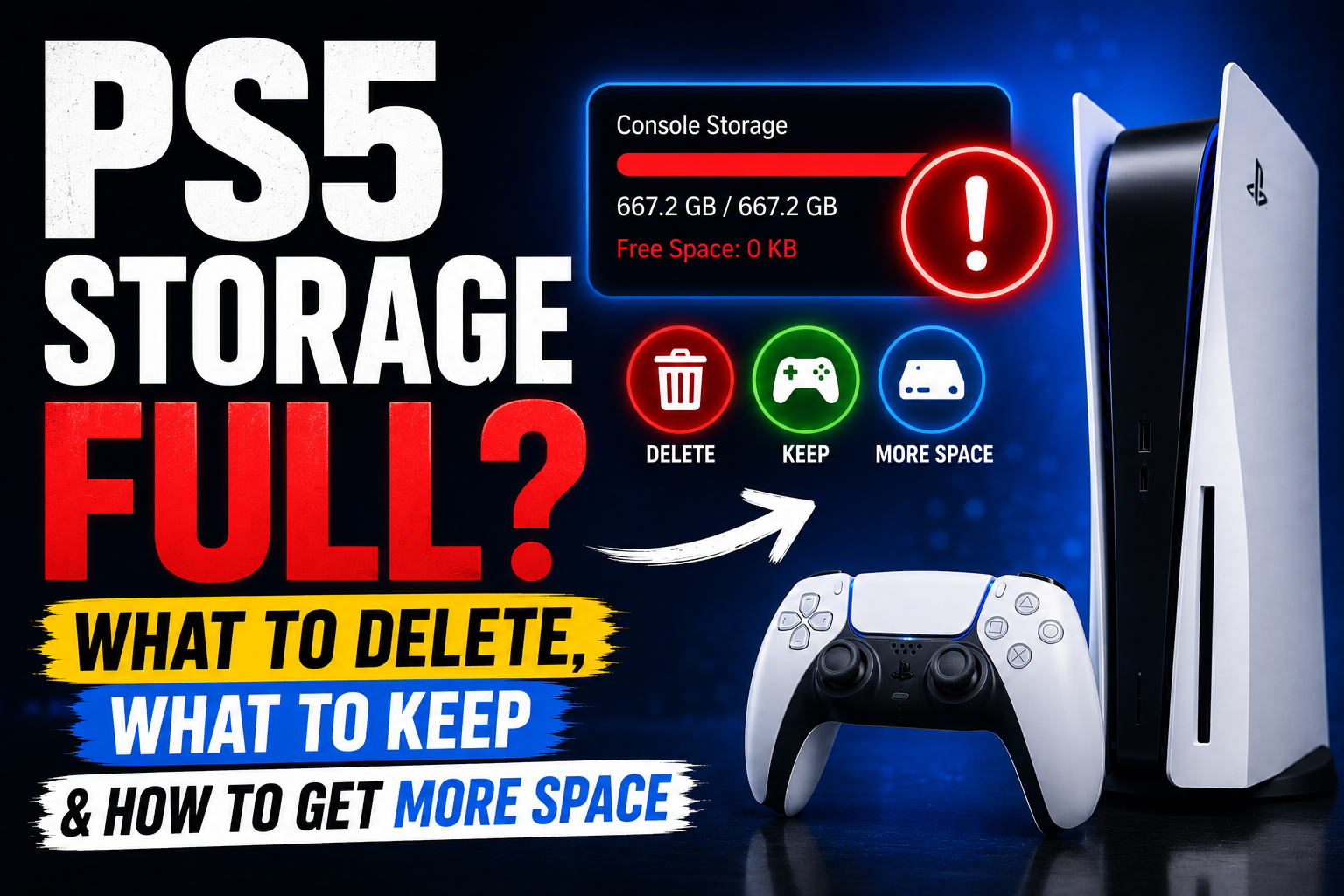
You boot up your PS5 to download the game you’ve been waiting weeks for — and there it is. “Not enough storage space.” You have 8 games installed. The console came with 825GB. How is it already full?
If this sounds familiar, you’re not doing anything wrong. The PS5’s internal SSD actually gives you only around 667GB of usable space once the operating system takes its share — and modern games regularly hit 80GB, 100GB, or more. A handful of big titles and you’re already watching the storage bar turn red.
The good news is that most players are unknowingly wasting gigabytes on things they’d happily delete if they knew where to look. This guide covers exactly what’s eating your PS5 storage, what’s safe to delete, what you should never touch, and how to expand your space permanently if needed.
Step 1 — Check What’s Actually Using Your Storage
Before deleting anything, spend 60 seconds finding out where your space is actually going.
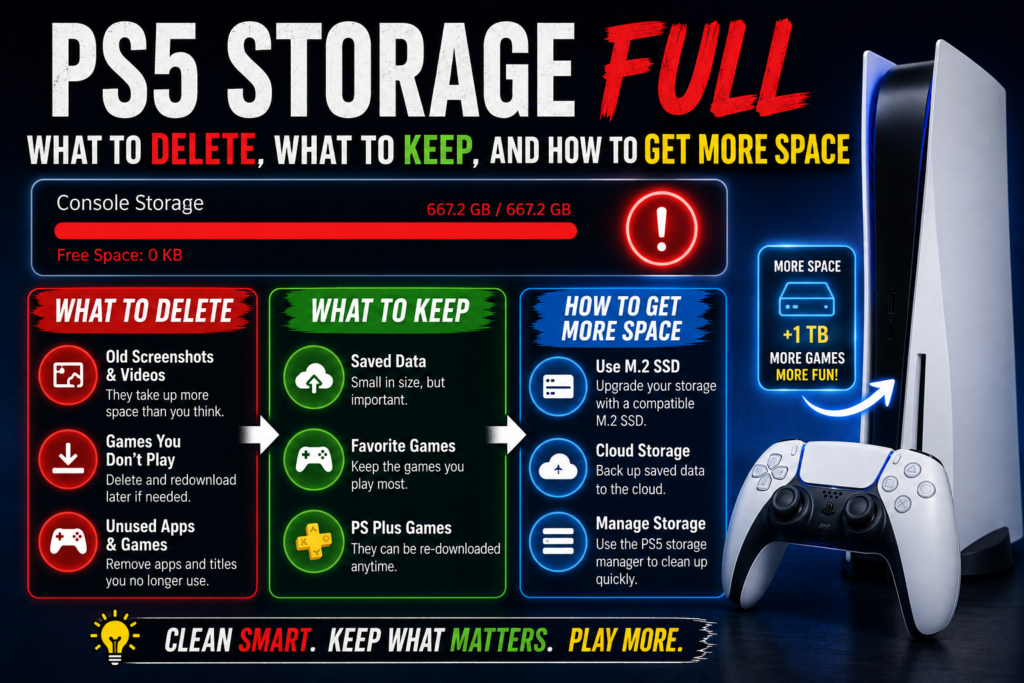
Go to Settings → Storage → Console Storage. You’ll see a visual breakdown of your storage split into categories:
- Games and Apps — your installed games
- Saved Data — your game save files
- Media Gallery — screenshots and video clips
- Other — system cache, temporary files, and miscellaneous data
Most people are surprised by how much the Media Gallery and Other categories are quietly consuming. Tap into each one to see the exact breakdown before you start deleting.
What to Delete First — Safe to Remove
1. Trophy Videos and Auto-Captured Clips
This is the biggest hidden storage drain on most PS5 consoles — and almost nobody realizes it’s happening.
By default, your PS5 automatically records a video clip every single time you earn a trophy. If you’ve been playing games and collecting trophies for months or years, you may have hundreds — possibly thousands — of clips sitting in your Media Gallery that you’ve never watched once.
These clips can easily add up to 10GB, 20GB, or more depending on how actively you’ve been gaming.
To delete existing clips: Go to Settings → Storage → Console Storage → Media Gallery. Select all clips you don’t need and delete them.
To stop new ones from being created: Go to Settings → Captures and Broadcasts → Captures → Trophies. Turn off Save Trophy Screenshots and Save Trophy Videos. From this point, no more automatic captures will pile up.
If you want to keep some trophy memories, you can customize the settings to only record platinum trophies and skip bronze, silver, and gold — a reasonable middle ground.
2. Games You’ve Finished or Haven’t Played in Months
This one seems obvious, but many players hold onto games they finished months ago “just in case.” A completed 80GB game sitting untouched is 80GB that could hold an entirely new title.
Here’s the key thing most people don’t realize: deleting a game does not delete your save data. Your progress, your hours, your achievements — all of that stays safe on your console in a separate save file. If you reinstall the game in six months, you pick up exactly where you left off.
To delete a game: Go to Settings → Storage → Console Storage → Games and Apps. Select the game, choose Delete, and confirm. The game is removed but your saves remain.
You can also do this directly from the home screen — highlight the game tile, press Options on your DualSense, and select Delete.
3. Old Game Saves for Games You’ll Never Replay
Save files are usually small — a few hundred megabytes at most for a single game. But if you’ve played dozens of games over the years, those saves add up. More importantly, saves for games you’ve uninstalled and will never touch again are taking up space for no reason.
Go to Settings → Storage → Console Storage → Saved Data. Sort by PS5 Games and PS4 Games separately. Delete saves for titles you’ve permanently moved on from.
Important: Before deleting saves, upload them to PlayStation cloud storage if you have PlayStation Plus — just in case you change your mind later. Go to Settings → Saved Data and Game/App Settings → Saved Data (PS5) → Upload to Cloud Storage.
4. Unused DLC and Add-On Content
When you delete a game, some of its extra content — DLC packs, add-on data, compatibility packs — sometimes stays behind as leftover files. These orphaned files serve no purpose and can be surprisingly large.
Go to Settings → Storage → Console Storage → Games and Apps. Look for any items marked as add-ons or extra content that don’t belong to a currently installed game. These are safe to delete entirely.
What NOT to Delete — Keep These Safe
Your Active Game Save Files
Save files are small but irreplaceable if you haven’t backed them up. Never delete saves for a game you’re still playing or plan to return to. Unlike games — which you can redownload — save data that isn’t backed up to the cloud is gone permanently once deleted.
If you have PlayStation Plus, turn on automatic cloud save sync so your saves are always backed up without manual effort. Go to Settings → Saved Data and Game/App Settings → Saved Data (PS5) → Auto-Upload.
System Software and Update Files
Some files in the Other category are system files that your PS5 needs to function. Don’t attempt to delete anything in the Other category through unofficial methods. The only safe way to reduce the Other category size is to rebuild the database through Safe Mode, which reorganizes system files without deleting anything essential.
To do this: hold the power button until you hear a second beep to enter Safe Mode, then select Rebuild Database. This won’t delete your games or saves but can reclaim a small amount of space from accumulated temporary data.
How to Free Up Space Without Deleting Anything
Move PS4 Games to an External USB Drive
If you play PS4 games on your PS5 — backwards compatibility works great — those games don’t need to be on the internal SSD to run. You can move them to a standard external USB drive (formatted as USB extended storage) and play them directly from there.
PS5 games cannot be played from a USB drive — they must be on the internal SSD or an M.2 expansion drive. But PS4 titles have no such restriction. Moving your PS4 library to an external drive can free up a substantial chunk of your internal SSD for PS5 games.
To set this up: plug in a USB drive (64GB minimum recommended), go to Settings → Storage and follow the prompts to format it as extended storage. Then move PS4 titles across via Settings → Storage → Console Storage → Games and Apps → Select Items to Move.
Upload Saves to PlayStation Plus Cloud Storage
If you’re a PlayStation Plus subscriber, your cloud storage is essentially free backup space for your save files. Upload all your important saves to the cloud, then delete the local copies for games you’re not actively playing.
This doesn’t free up much space directly since saves are small — but it gives you the safety net to delete and reinstall games freely without any fear of losing progress. That confidence makes managing your library much easier. You can read more about how rest mode affects cloud save syncing in our PS5 rest mode problems guide.
How to Permanently Expand Your PS5 Storage
If you’ve cleared everything you’re willing to clear and still need more room, there are two permanent options:
Option 1 — Add an M.2 NVMe SSD
The PS5 has an expansion slot designed for a compatible M.2 NVMe SSD. Once installed, it works exactly like the built-in storage — you can install and run PS5 games directly from it with no performance difference.
This is the best long-term solution for players with large game libraries. A 1TB or 2TB M.2 SSD doubles or triples your available space. The installation requires a small Phillips screwdriver and takes about 10 minutes — Sony’s official instructions walk through it clearly.
According to PlayStation’s official storage management page, the M.2 SSD must meet specific speed and size requirements to be compatible with the PS5, so check the specifications before purchasing.
Option 2 — External USB Drive for PS4 Games
As mentioned above, a standard external USB drive is the cheaper option and works well for PS4 game storage. It won’t help with PS5 titles, but if a good portion of your library is PS4 games you still play, this is an easy and affordable way to reclaim internal SSD space.
Quick Action Plan — Do This Right Now
If your PS5 storage is full today and you need space fast, follow this order:
- ✅ Go to Media Gallery — delete all trophy videos and old clips
- ✅ Turn off auto-captures in Captures and Broadcasts settings
- ✅ Delete finished games — your saves stay safe
- ✅ Check for leftover DLC from uninstalled games
- ✅ Move PS4 games to an external USB drive
- ✅ Upload saves to cloud via PlayStation Plus before any major cleanup
- ✅ Rebuild database in Safe Mode to clear temporary system files
Most players find that steps one and two alone free up several gigabytes immediately — without touching a single game.
Frequently Asked Questions
Will deleting a game delete my saves? No. Game saves are stored separately from the game files. Deleting the game removes the installed data only. Your saves remain until you delete them manually.
Can I play PS5 games from a USB drive? No. PS5 games must be installed on the internal SSD or an M.2 expansion drive to run. You can store PS5 games on a USB drive temporarily, but you’ll need to move them back to the internal storage before playing.
How much usable storage does the PS5 actually have? The PS5 has 825GB of total SSD storage, but only around 667GB is available to users. The rest is used by the operating system and system software.
Is it safe to delete the “Other” storage files? Not directly. The Other category contains system files, cache, and temporary data. The safe way to reduce it is through Safe Mode database rebuild — not by manually deleting files through any unofficial method.
Final Thought
A PS5 storage full message feels more dramatic than it actually is. In most cases, the fix takes under 10 minutes — turn off trophy auto-captures, delete finished games you’re holding onto out of habit, and clear out the Media Gallery.
Your saves are always safe as long as you back them up to PlayStation Plus cloud storage before any major cleanup. Once that habit is in place, managing your PS5 storage becomes completely stress-free.
And if you’ve been running into rest mode issues alongside your storage problems — the two are sometimes connected, especially if you have external drives plugged in. Our guide on PS5 rest mode problems explains exactly why external drives cause issues and how to fix them.