
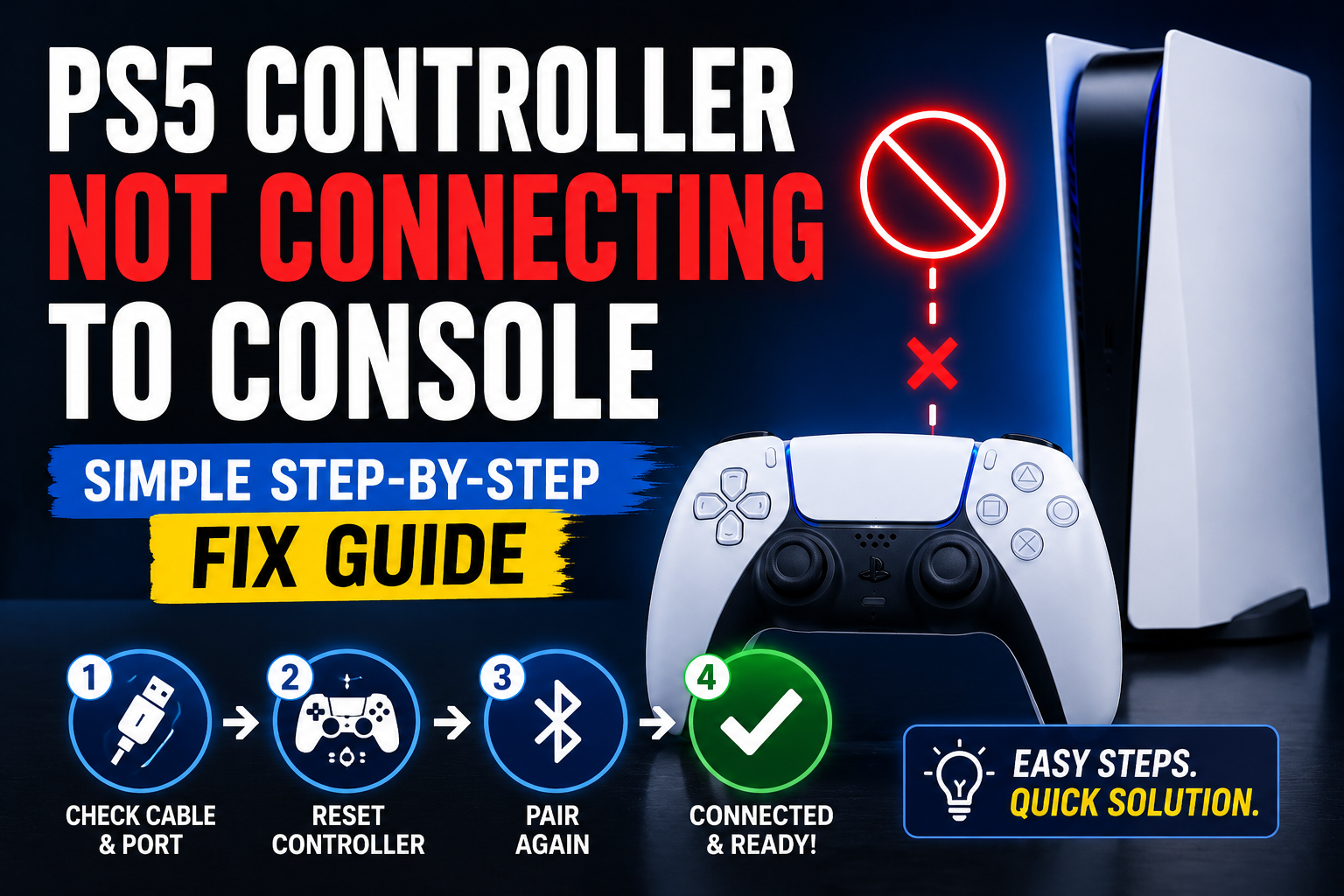
You press the PS button. The light bar blinks a few times. Then nothing. Your PS5 is on, the TV is ready, and your controller just refuses to connect.
It’s one of the most frustrating things that can happen right before a gaming session — and it seems to happen at the worst possible time. The good news is that a PS5 controller not connecting to console is almost never a sign of serious hardware damage. In most cases, it’s caused by something small — a pairing glitch, a drained battery, a wrong cable, or the controller being confused about which device it belongs to.
This guide walks you through every fix, in the right order, so you’re not wasting time on advanced steps when a simple one will do the job.
Why Is Your PS5 Controller Not Connecting?
Before jumping into fixes, it helps to know what’s actually going wrong. The DualSense connects to your PS5 over Bluetooth — and Bluetooth is notoriously sensitive to interference, pairing conflicts, and software hiccups.
Here are the most common reasons the connection fails:
- Low battery — A controller with barely any charge may power on but fail to complete the pairing handshake
- Paired to another device — If you recently used your controller on a PC, phone, or tablet, it might still be “claimed” by that device
- Bluetooth interference — Other wireless devices nearby can disrupt the signal
- Software glitch — A frozen communication state between the controller and console
- Outdated firmware — An old firmware version on the controller or PS5 can cause pairing failures
- Physical damage — In rare cases, the Bluetooth module on the controller itself is faulty
Work through the fixes below in order. Most people solve it within the first two or three steps.
Fix 1 — Charge the Controller First
This sounds obvious, but it catches people out more than you’d expect.
A DualSense with a critically low battery may turn on — you’ll see the light bar blink — but it won’t have enough power to complete a Bluetooth connection. The pairing process requires a stable power draw, and a near-empty battery simply can’t sustain it.
Plug your controller into your PS5 or a wall adapter using a proper USB-C cable and let it charge for at least 15 to 20 minutes before trying again. Once there’s a reasonable charge level, press the PS button and see if it connects.
If the controller won’t charge at all, check out our guide on PS5 controller not charging in rest mode — that issue often goes hand in hand with connection problems.
Fix 2 — Connect via USB Cable First
When wireless pairing fails completely, the fastest way to get back into the game is to bypass Bluetooth entirely and connect with a cable.
Take your USB-C cable — ideally the one that came with your PS5 — and plug one end into the controller and the other into one of the USB ports on your console. Then press the PS button.
This forces the PS5 to recognize the controller directly, without needing Bluetooth to cooperate. Once the controller is connected and working via cable, you can then try switching to wireless from there.
One critical point: not all USB-C cables work for this. Many cables sold with cheap accessories are charge-only — they carry power but not data. The PS5 needs a data connection to pair a controller, so a charge-only cable will do nothing. If the cable you’re using isn’t the original, test it on a PC first — if the controller shows up as a connected device, the cable is good.
Fix 3 — Re-Pair the Controller Properly
If your DualSense was recently connected to a PC, phone, or another PS5, it may still be “spoken for.” The DualSense can only be actively paired to one device at a time. If your console isn’t the last device it paired with, it won’t connect wirelessly until you manually put it back into pairing mode.
Here’s how to re-pair it with your PS5:
- Make sure your PS5 is on and fully booted
- Hold the PS button and the Create button (the small button to the left of the touchpad) simultaneously
- Hold both buttons until the light bar starts flashing rapidly — this means the controller is in pairing mode and looking for a new connection
- Your PS5 should detect it automatically and complete the pairing within a few seconds
If the console doesn’t pick it up automatically, go to Settings → Accessories → Bluetooth Accessories on your PS5 and look for the controller in the list of available devices.
This fix works particularly well for players who switch their DualSense between a PS5 and a PC or phone regularly.
Fix 4 — Reset the DualSense Controller
If the controller still won’t connect after re-pairing, a full reset is the next step. This wipes the controller’s stored pairing information and internal state — giving it a completely clean start.
You’ll need a straightened paperclip, a SIM ejector tool, or anything similarly thin and firm.
Follow these steps exactly:
- Turn off your PS5 completely — not rest mode, hold the power button until it fully shuts down
- Unplug your controller from any cable
- On the back of the controller, locate the small pinhole near the L2 trigger — this is the reset button
- Insert your paperclip and press and hold for 5 full seconds
- Release and wait a moment
- Now connect the controller to the PS5 via USB-C cable
- Press the PS button
The PS5 should immediately recognize the controller over the cable. From there, you can test whether wireless connection now works by unplugging the cable while the session is active.
This reset process is also the official Sony-recommended fix. According to PlayStation’s official support page, if you’re unable to operate a PS5 console, resetting the controller and reconnecting via USB cable is the correct first troubleshooting step.
Fix 5 — Remove Old Bluetooth Device Pairings
Your PS5 stores a list of previously paired Bluetooth accessories. If that list has gotten cluttered — especially with older controllers, headsets, or devices that are no longer in use — it can sometimes interfere with new pairing attempts.
Here’s how to clear it:
- Go to Settings on your PS5
- Select Accessories
- Choose Bluetooth Accessories
- Find your DualSense in the list
- Press Options on a working controller, then select Delete
- Re-pair the controller fresh using the method in Fix 3
Removing the old pairing record and starting fresh often resolves situations where the controller connects briefly and then drops, or where the PS5 seems to “see” the controller but won’t fully sync.
Fix 6 — Reduce Bluetooth Interference
Bluetooth operates on the 2.4GHz frequency band — and so does almost everything else in a modern home. WiFi routers, wireless headsets, smart speakers, cordless phones, and even microwave ovens can all create interference that disrupts your controller’s connection.
If your connection problems started recently without any obvious cause, interference might be the reason.
Try these things:
- Move your PS5 away from your router if they’re sitting close together
- Turn off other Bluetooth devices in the room temporarily — headsets, speakers, keyboards, mice
- Keep the controller within 5 to 6 metres of the console — Bluetooth range degrades quickly through walls and around obstacles
- If you’re using a 2.4GHz WiFi network, consider switching your router to 5GHz — it operates on a different band and won’t compete with your Bluetooth signal
Many players who experience random disconnects mid-game find that moving the console just a metre or two away from the router makes the problem disappear entirely.
Fix 7 — Update Your PS5 System Software
An outdated PS5 system software version can cause all sorts of accessory issues — including the DualSense refusing to connect or dropping connection randomly.
To check for updates:
- Go to Settings
- Select System
- Choose System Software
- Select System Software Update and Settings
- Click Update System Software
If an update is available, let it install completely and then restart the console. After the update, try connecting your controller again — both wired and wireless.
While you’re in the settings, also check if your DualSense firmware is up to date:
- Go to Settings → Accessories → Controller
- Select DualSense Wireless Controller Device Software
- Update if a newer version is available
Sony occasionally pushes controller firmware updates that fix specific connectivity and pairing bugs. Keeping both the console and controller on the latest version is good maintenance practice even when things are working fine.
Fix 8 — Power Cycle Your PS5 Completely
If the PS5 itself has a software glitch affecting its Bluetooth system, none of the above fixes will work until you clear it. A full power cycle — not a restart, a complete shutdown — is how you do that.
- Press the PS button on a working controller (or navigate with a USB-connected one)
- Select Turn Off PS5 — not Enter Rest Mode
- Once the console is fully off and the power light is completely dark, unplug the power cable from the back
- Wait 60 seconds
- Plug back in and power on normally
This drains any residual power and forces the Bluetooth subsystem to reinitialize from scratch. After the console boots back up, try pairing your controller again using the USB cable method first, then switch to wireless.
Fix 9 — Try a Different Controller If Possible
If you have access to a second DualSense — borrowed from a friend or a spare — try connecting that one to your PS5.
If the second controller connects without any problem, the issue is specific to your original controller, not the console. At that point, you’re looking at a potential hardware fault — either the Bluetooth module inside the controller, or physical damage that isn’t immediately visible.
If the second controller also fails to connect, the problem is with the PS5 itself, and a factory reset of the console (after backing up your data) or a contact with PlayStation Support would be the appropriate next step.
When to Contact Sony Support
If you’ve gone through every fix in this guide and your PS5 controller is still not connecting to the console, it’s time to get Sony involved.
Before you contact support, gather this information:
- Your PS5 serial number (printed on the back of the console)
- Proof of purchase
- A description of what you’ve already tried
If your console or controller is still within the one-year warranty period, Sony will typically replace a faulty controller at no cost. Even outside warranty, PlayStation Support can run remote diagnostics and advise whether repair or replacement is the more cost-effective route.
Quick Fix Summary
Here’s the full checklist in order:
- ✅ Charge the controller for 15+ minutes first
- ✅ Connect via USB-C cable (data cable, not charge-only)
- ✅ Re-pair using PS button + Create button
- ✅ Reset the controller with the pinhole button
- ✅ Delete old Bluetooth pairings and start fresh
- ✅ Reduce Bluetooth interference — move router, turn off other devices
- ✅ Update PS5 system software and DualSense firmware
- ✅ Full power cycle the PS5 — unplug for 60 seconds
- ✅ Test a second controller to isolate the problem
- ✅ Contact Sony Support if nothing works
Final Thought
A PS5 controller not connecting to your console is annoying — but it’s almost always fixable at home. Start with the cable, do the reset if needed, and clear out any old Bluetooth pairings. Those three steps alone solve the problem for the vast majority of players.
Once your controller is back online, it’s worth doing a quick review of your other PS5 settings too. If you’ve been experiencing issues with charging during rest mode as well, the two problems often share a root cause. Our guide on PS5 controller not charging in rest mode walks through that fix in the same step-by-step format.
Get the basics sorted, keep your firmware updated, and your DualSense will give you years of reliable play.